
How to Control the Swept Mesh
In the previous part of this course, we discussed the requirements for a geometry in the COMSOL Multiphysics® software to be meshed using the Swept operation. In this article, we expand on this by discussing how to control the swept mesh that is generated. The most important settings and considerations for generating a swept mesh will be addressed in this article. For our purposes here, we assume that each of the domains to be swept meshed are fulfilling every requirement discussed in the previous article.
Choosing the Source and Destination Faces
We learned in Part 2 that the direction of the sweep is important (because the software needs to be able to imprint the source faces over the destination faces). The source and destination faces do not always require manual selections because the software automatically detects them. The only time where you would need to manually select the source or destination faces is when the direction of the sweep is ambiguous: There are different paths that the sweep can take, and there may be one that is preferable, depending on the physics. This is especially true if you are meshing multiple domains; however, even in such a case it is usually sufficient to select the source faces, as COMSOL Multiphysics® will automatically detect the destination faces based on the source faces you choose.
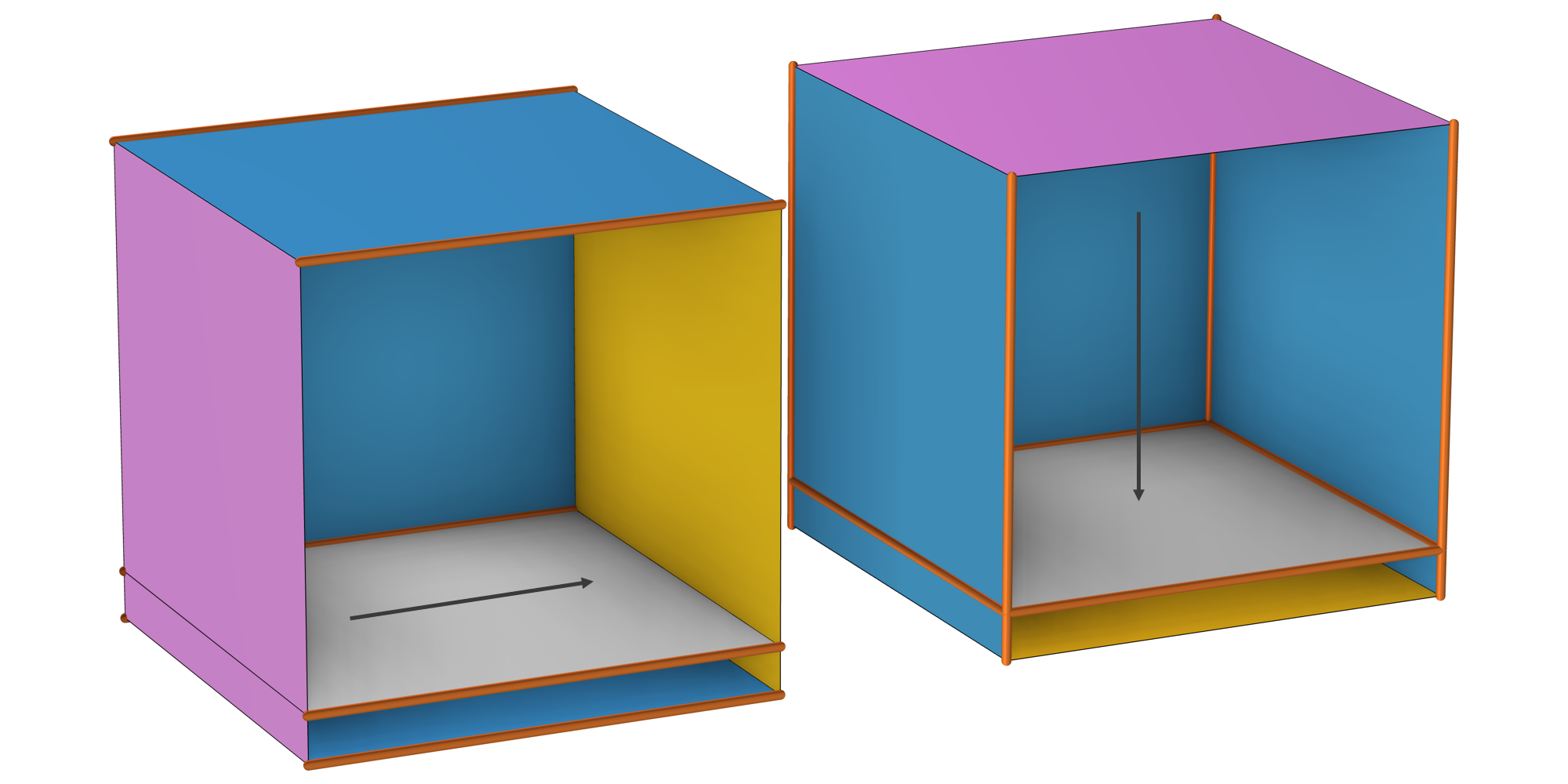
Two different sweep directions (indicated by the arrows). The image on the left shows a sweep performed with a user-defined source face, where COMSOL Multiphysics® has automatically detected the destination face. In contrast, on the right, COMSOL Multiphysics® has automatically picked the source face (magenta) and the destination face (yellow). (Front boundaries are hidden for visibility.)
The surface mesh is generated automatically by the Swept operation: The source face is meshed using a quad mesh (ie., quadrilateral), quad dominant mesh, or triangular mesh, the linking faces are meshed with a mapped mesh; and the destination face mesh is transferred from the source (via multiple methods, described in the documentation). In the following example, a triangular mesh is built on the source face.
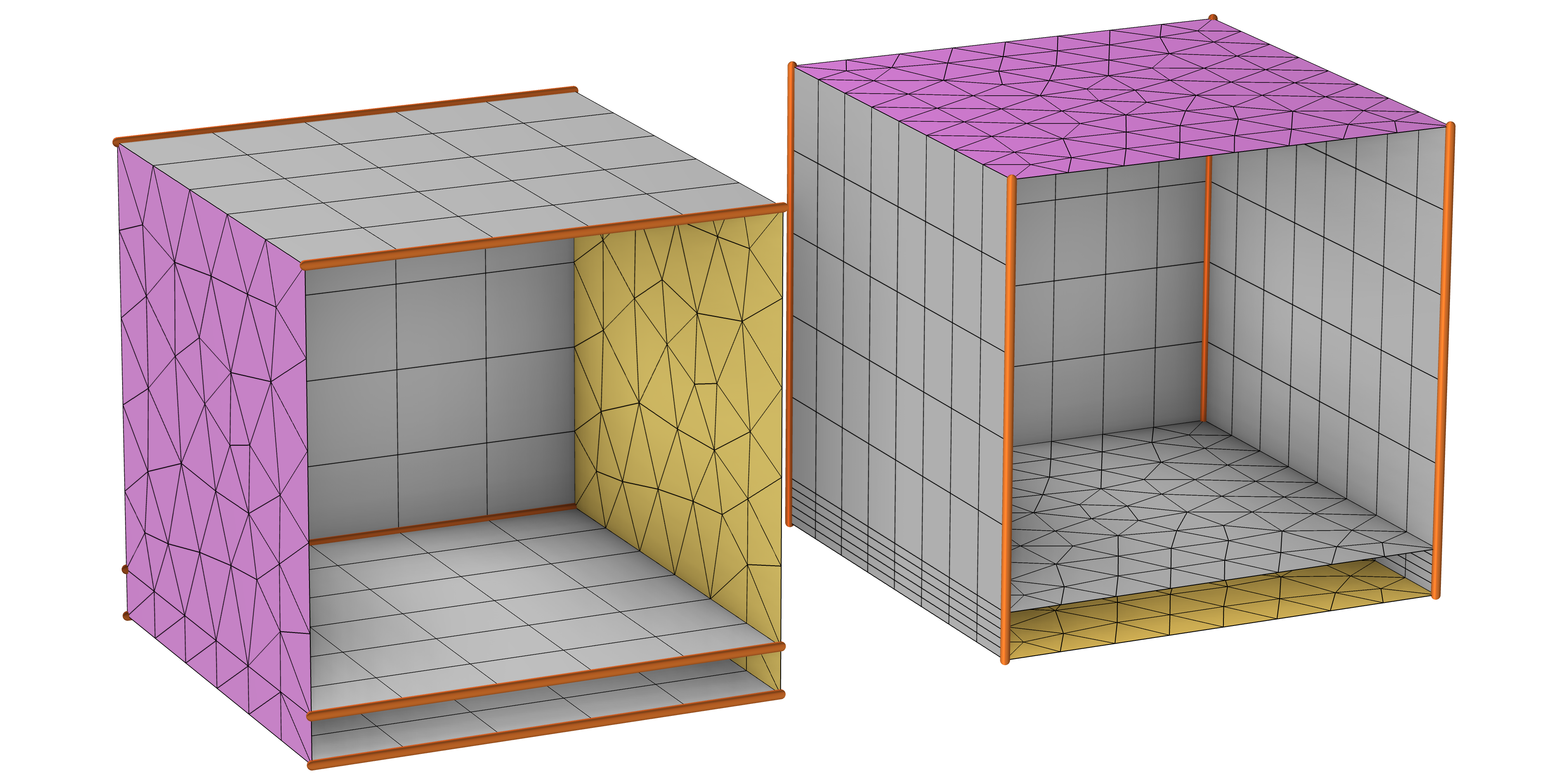
The resulting surface meshes for the two sweeps depicted above. (Front boundaries hidden; linking face meshes depicted by the gray grids.) Because the source face was user defined for the swept mesh on the left and detected by the software for the mesh on the right, two different meshes were generated. Note that a Distribution subnode acts along the sweep direction in both cases, generating 5 element layers in the domains. Depending on the physics, one mesh might be preferable to the other.
There is also the option to manually generate the surface mesh for the source face first, after which you would add a Swept mesh operation. Read more about this in the section When and How to Premesh the Source Faces.
Controlling the Mesh Size and Distribution
As explained in more detail in our blog post on meshing domains with different size settings, it is a good practice to use one mesh operation with many local size attributes instead of repeating several mesh operations. This also relates to the parallelization of the meshing algorithm. The Swept operation is no exception to this rule, so let's have a look at the two attributes that are available. To add an attribute, right-click the Swept node and select Size or Distribution.
Size
You can use a Size node for setting up a maximum or minimum element size in the domains or on the boundary level for the source faces. The maximum or minimum size expressions can be dependent on physics variables, parameters, or expressions that include variables and parameters. For more control over the size of the mesh elements on the specific source faces, see the section "When and How to Premesh the Source Faces" below.
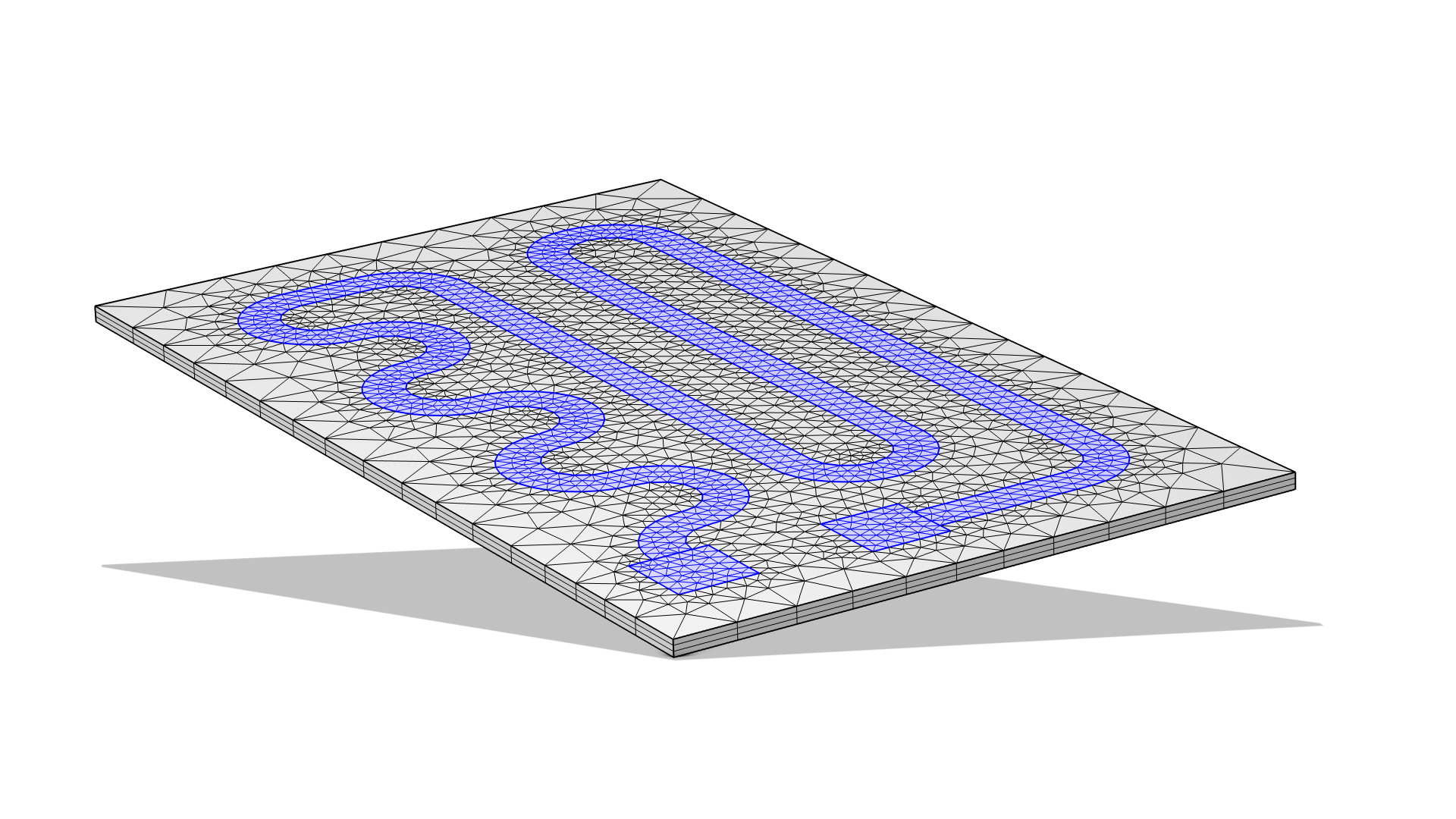 The boundaries of a heating element are selected in blue.
Adding a Size attribute to control the element size on the selected (blue) boundaries of this heating circuit.
The boundaries of a heating element are selected in blue.
Adding a Size attribute to control the element size on the selected (blue) boundaries of this heating circuit.
Distribution
For the Swept operation, the Distribution attribute specifies how many mesh element layers there are along the sweep direction. This functionality is commonly used for infinite element domains, as is shown for the motor and mobile device model examples below. The layers of mesh elements in that domain allow the wave energy to be gradually absorbed without spurious reflections, emulating the device in an infinite domain and keeping the focus within the immediate vicinity. If you want to control the distribution along an edge, you need to premesh it, as explained below. The result is determined by the Distribution Type and the associated settings. If a similar element size is wanted in several domains, consider using a Size attribute instead.
See the article "Geometry and Mesh Setup for Modeling Regions of infinite Extent" for more information on handling infinite element domains.
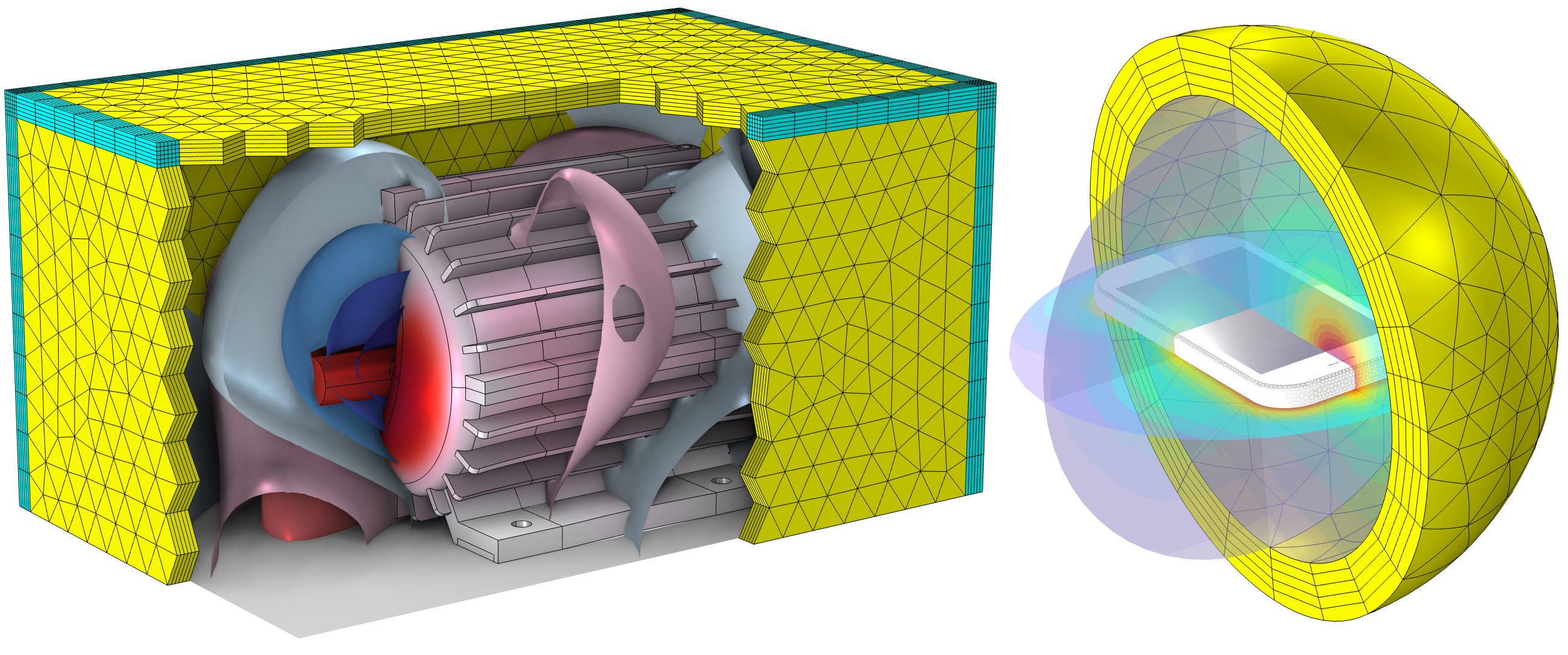 On the left, a yellow rectangular box with triangular shapes on the surface and cyan rectangular shapes along the edges an corners, and on the right, concentric yellow spherical layers made up of rectangular elements surround a rectangular device.
The boundaries around an electric motor (left) and a mobile device (right) are meshed with layers using the Swept and Distribution nodes to emulate the objects in an infinite domain.
On the left, a yellow rectangular box with triangular shapes on the surface and cyan rectangular shapes along the edges an corners, and on the right, concentric yellow spherical layers made up of rectangular elements surround a rectangular device.
The boundaries around an electric motor (left) and a mobile device (right) are meshed with layers using the Swept and Distribution nodes to emulate the objects in an infinite domain.
The default Distribution type is Fixed number of elements. Change this setting to Predefined to specify an element distribution that is either linearly or exponentially growing. This helps to obtain a smooth size transition between adjacent domain, required by some physics, such as in fluid mechanics.
When setting up any predefined distribution, the number of elements  and the element ratio
  (ratio between the largest height
  and the smallest height
  ) are the input numbers:
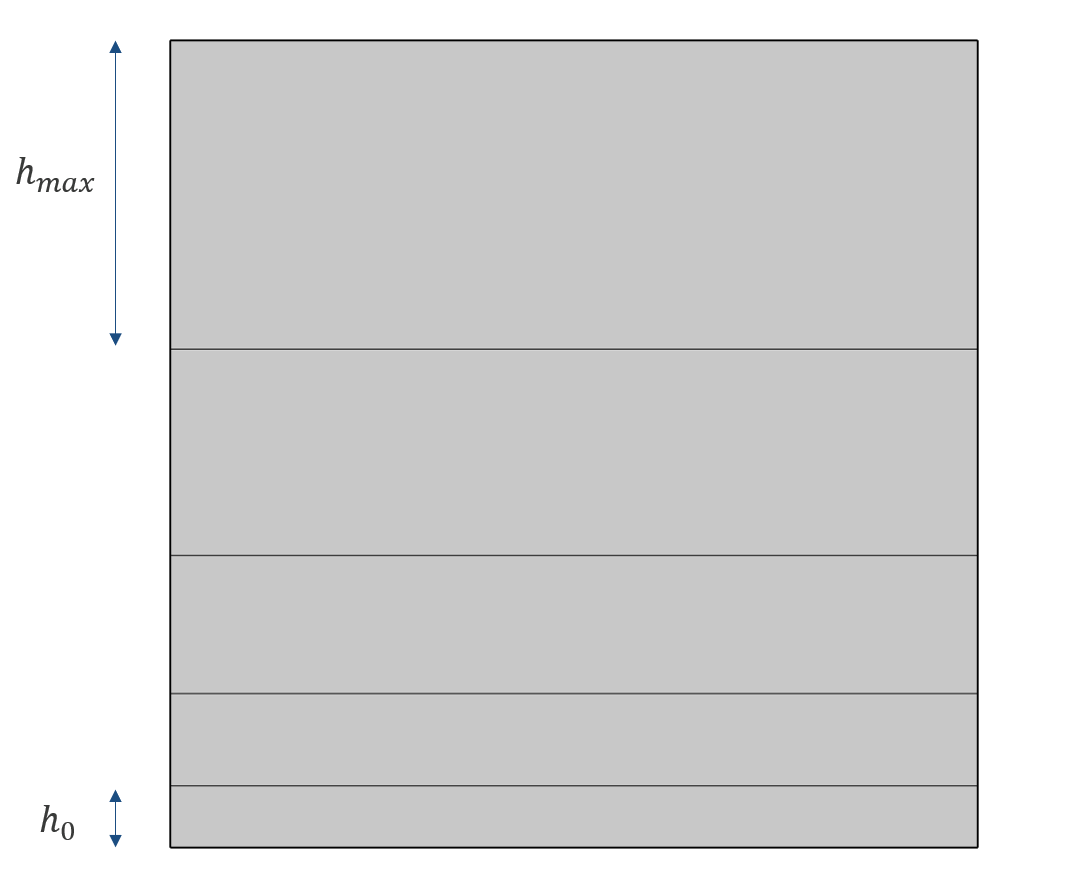 A graph shows the lengths of the domains in an asymmetric distribution.
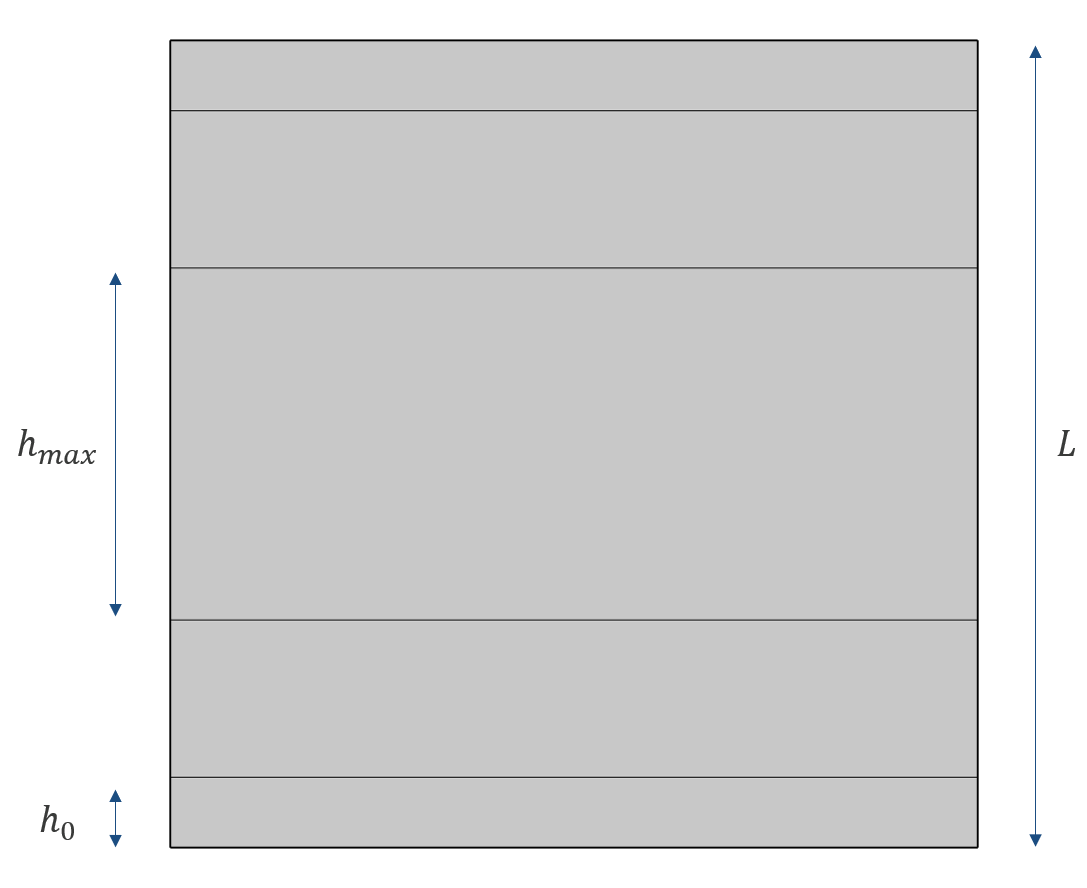 A graph shows the lengths of the domains in a symmetric distribution.
 .
.
While, most of the time, the parameters can be tweaked manually so that the mesh is satisfactory, one might want to have more control of the mesh growth rate. In the table below, some useful relations for the asymmetric distributions are presented. The symmetric distributions depend on the parity of , but are approximated (equal when is even) if and are replaced by  and
and  , respectively.
| Expression | Linear | Exponential |
|---|---|---|
 |
 |
 |
 |
 |
 |
 |
 |
 |
It might be the case that and the maximum local growth rate,  , between consecutive heights (
 ) are known.
Let's say, for example, that you want to be equal to the size of the mesh on the cross section and that the maximum growth rate is fixed by the global size node. How do you deduce and ? Let us find out with an exponential distribution.
Generally, the height is bounded, so that
 . The first step is to ensure this is true even when
  . (The goal is to use the least amount of elements.) Consequently, from the last line of the table:
From here,
and  are deduced by rearranging the third line and by definition of :
Finally, using the second line,
can be approximated as the closest integer to  .
.
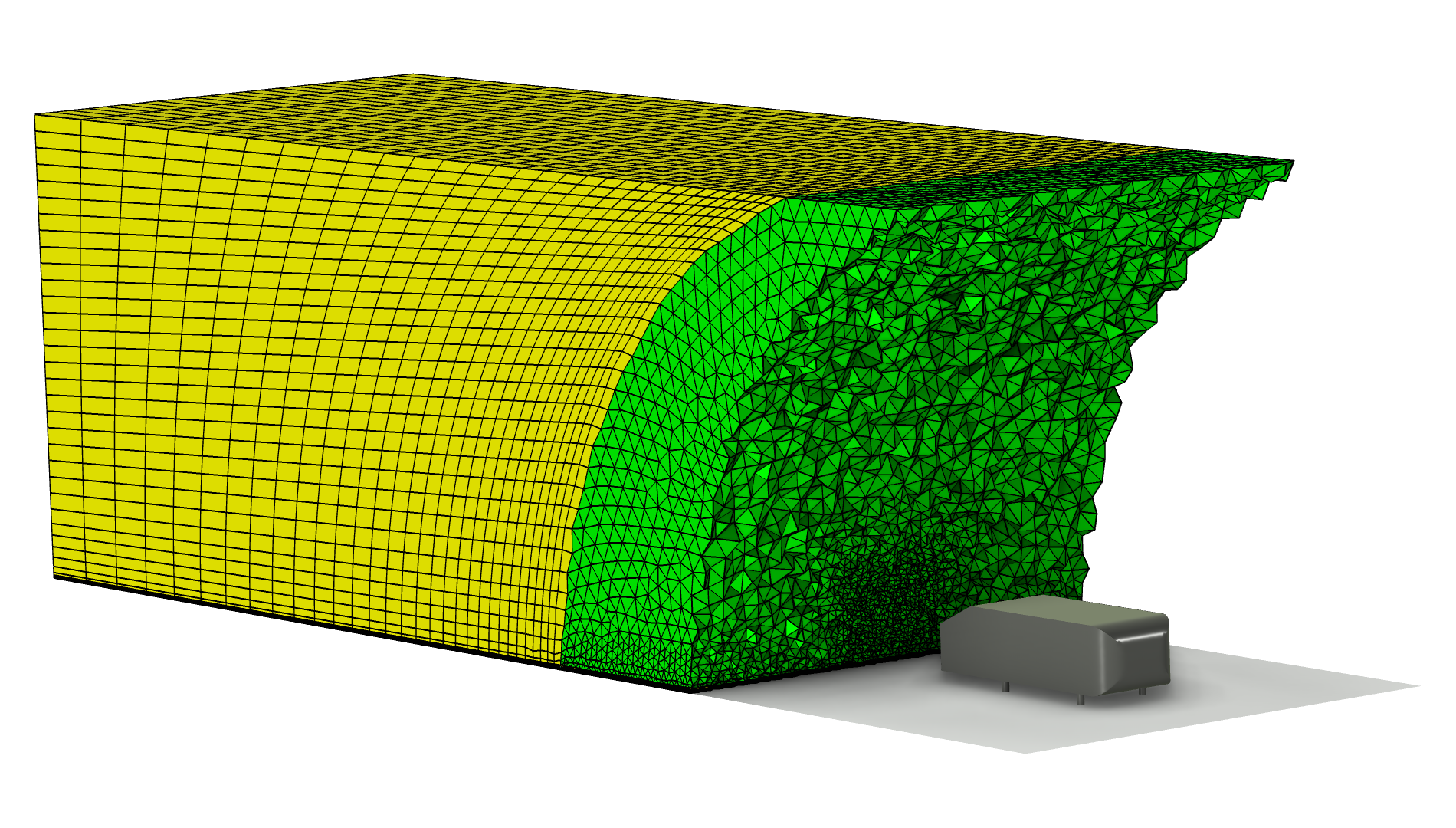 The mesh for the fluid flow domain surrounding an Ahmed body, where the coarser mesh that's farther from the body is yellow and the finer mesh that's closer to the body is green.
The Swept mesh (in yellow) behind the Ahmed body has been modified to make use of the exponential distribution in order to smoothly increase the size of the mesh elements.
The mesh for the fluid flow domain surrounding an Ahmed body, where the coarser mesh that's farther from the body is yellow and the finer mesh that's closer to the body is green.
The Swept mesh (in yellow) behind the Ahmed body has been modified to make use of the exponential distribution in order to smoothly increase the size of the mesh elements.
Adding a boundary layer mesh can sometimes be an alternative to using a predefined distribution in the sweep. This is shown below with the pictured example.
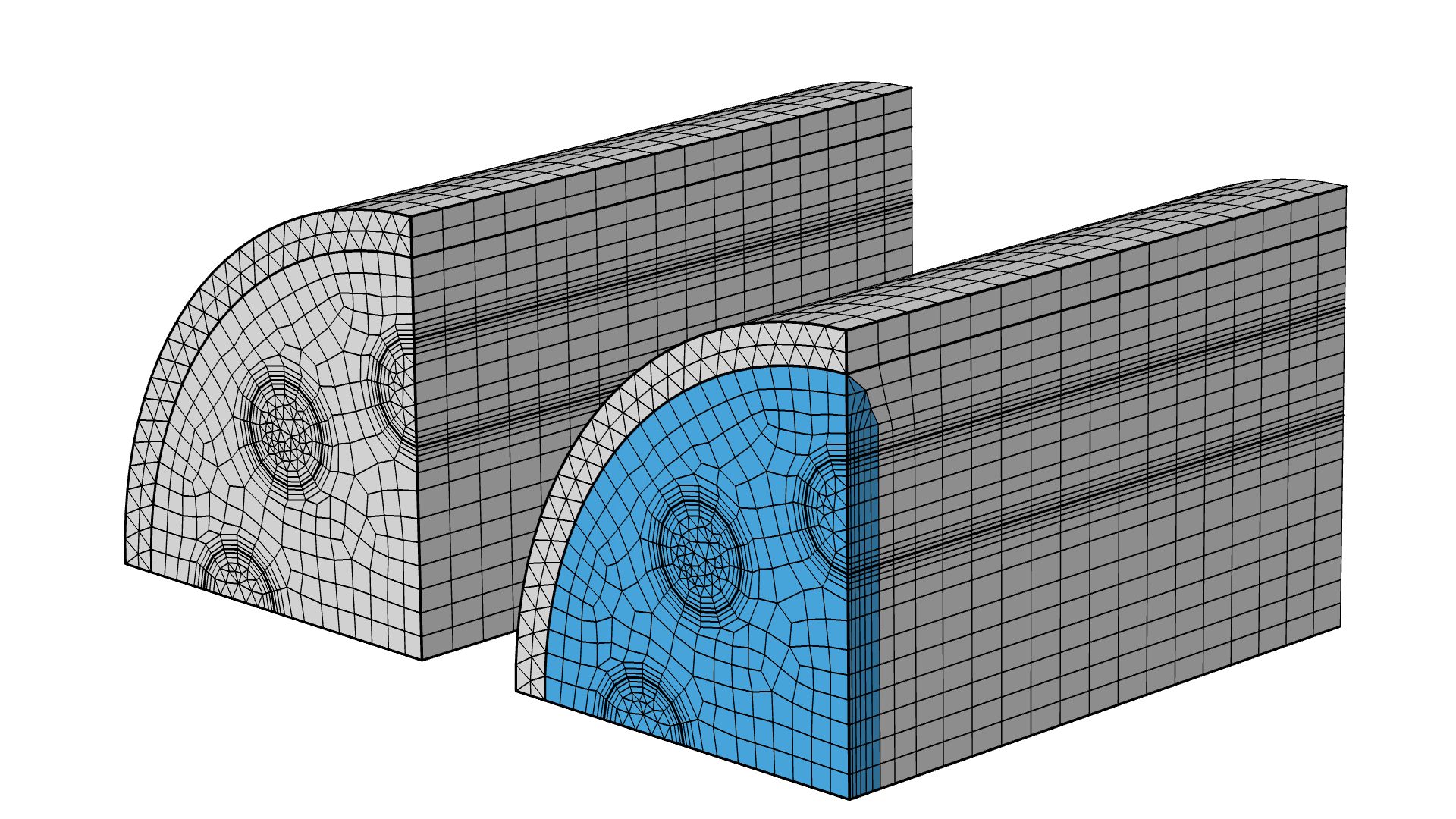
The Steam Reformer tutorial model geometry. Here, a boundary layer mesh is added at the beginning of the geometry, instead of a symmetric distribution. The inserted boundary layer mesh elements are highlighted in blue.
There is also the option to manually generate the surface mesh for the source face first, and then follow this with adding a Swept mesh operation. Doing so enables you to use mesh operations (e.g. Size and Distribution subnodes) to achieve a desired face meshing on the source face, which you can then sweep into a 3D mesh. Examples of which can be seen here.
When and How to Premesh the Source Faces
Although the surface meshing for a domain can be handled automatically using the Swept operation, there are cases in which you will want to premesh the source faces to have more control over the mesh on those boundaries. By premesh, we mean meshed by a previous operation.
It is important to note that any faces already meshed prior to adding a Swept operation will automatically be selected as the source faces, unless meshed with a mapped mesh where they can also be used as linking faces. You can use a Free Quad, Free Triangular, or Mapped operation to premesh the source faces when needed (examples of which can be seen here.) Some use cases for premeshing the source faces include when you need:
- A boundary layer mesh. For a swept mesh, it is recommended to add the boundary layers on the source faces before it is swept. (See the below image.)
- A Distribution attribute to control the edge mesh on the source faces.
- A mapped mesh on the source faces.
 Three side-by-side figures of the Steam Reformer tutorial model geometry showing the boundary layer mesh.
The Steam Reformer tutorial model geometry. The boundary layer mesh is added to the source faces before a swept mesh is built.
Three side-by-side figures of the Steam Reformer tutorial model geometry showing the boundary layer mesh.
The Steam Reformer tutorial model geometry. The boundary layer mesh is added to the source faces before a swept mesh is built.
Note: If multiple faces are meshed prior to the Swept operation, make sure that: 1. any premeshed linking faces are meshed using a Mapped operation. and 2. any premeshed destination faces precisely match the source. (To achieve this, use an Identical Mesh attribute or copy the mesh).
Premeshing edges can also be useful. For example, the Edge operation can take the curvature factor into account while maintaining a continuous growth rate change.
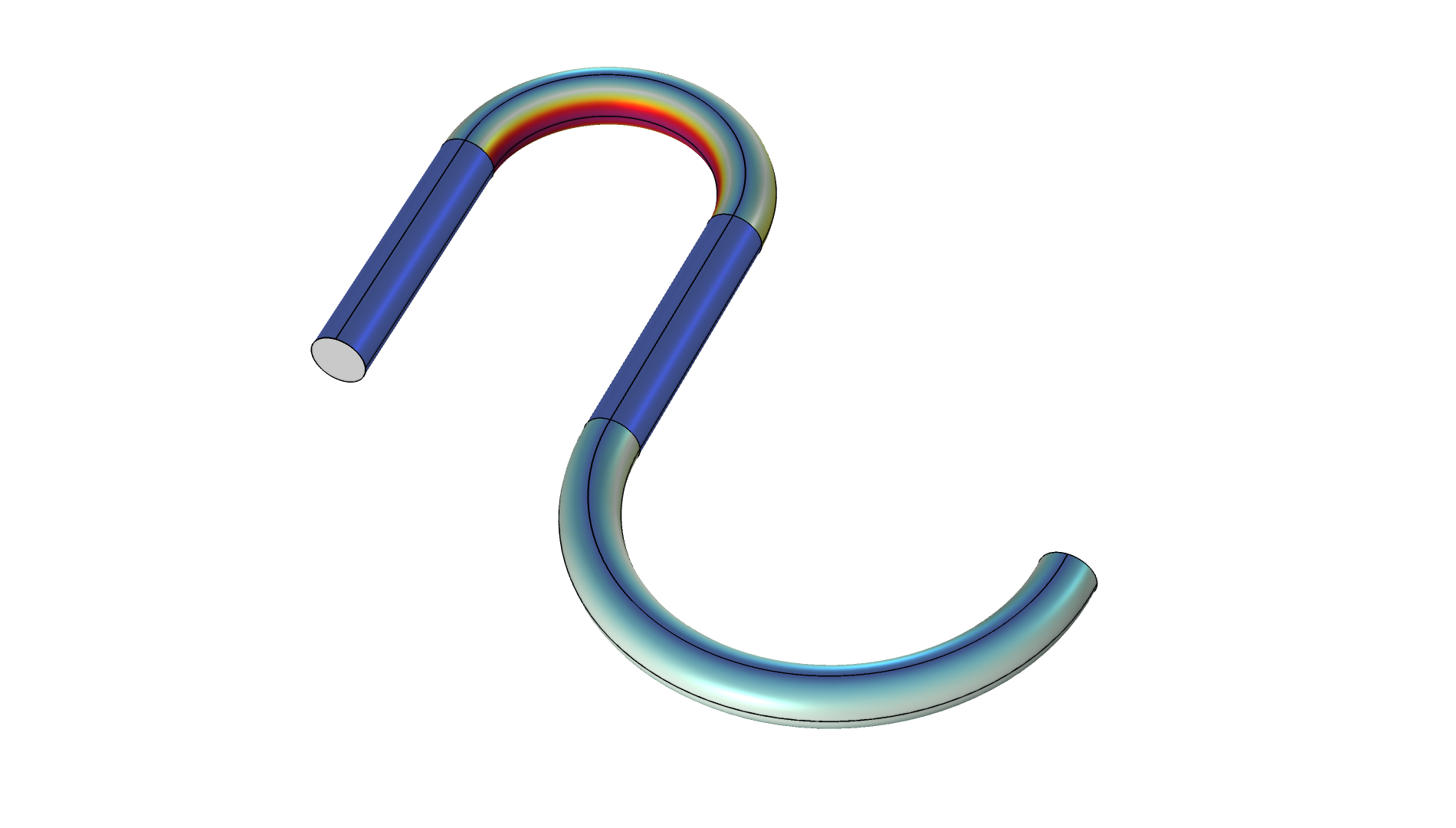
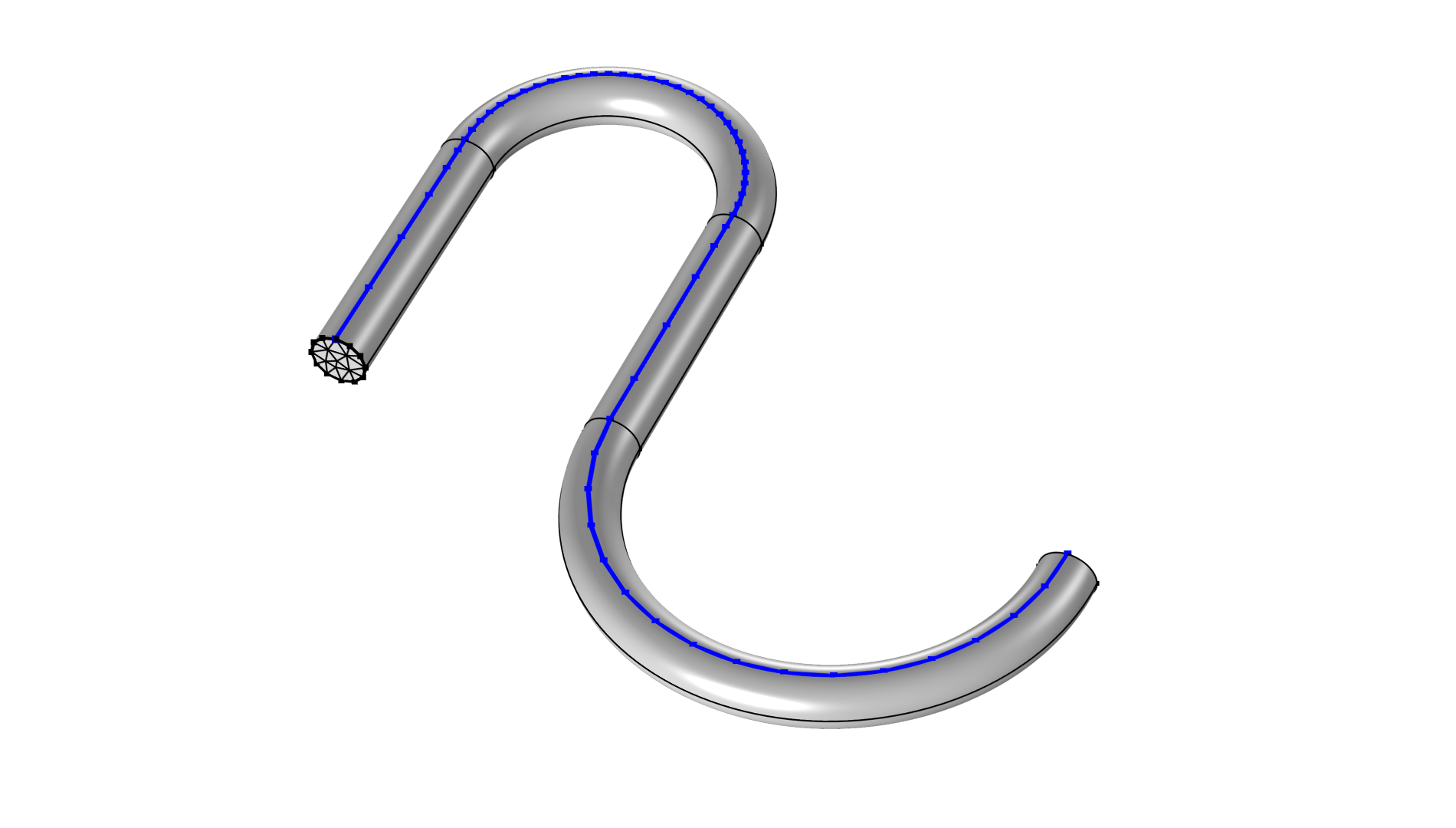
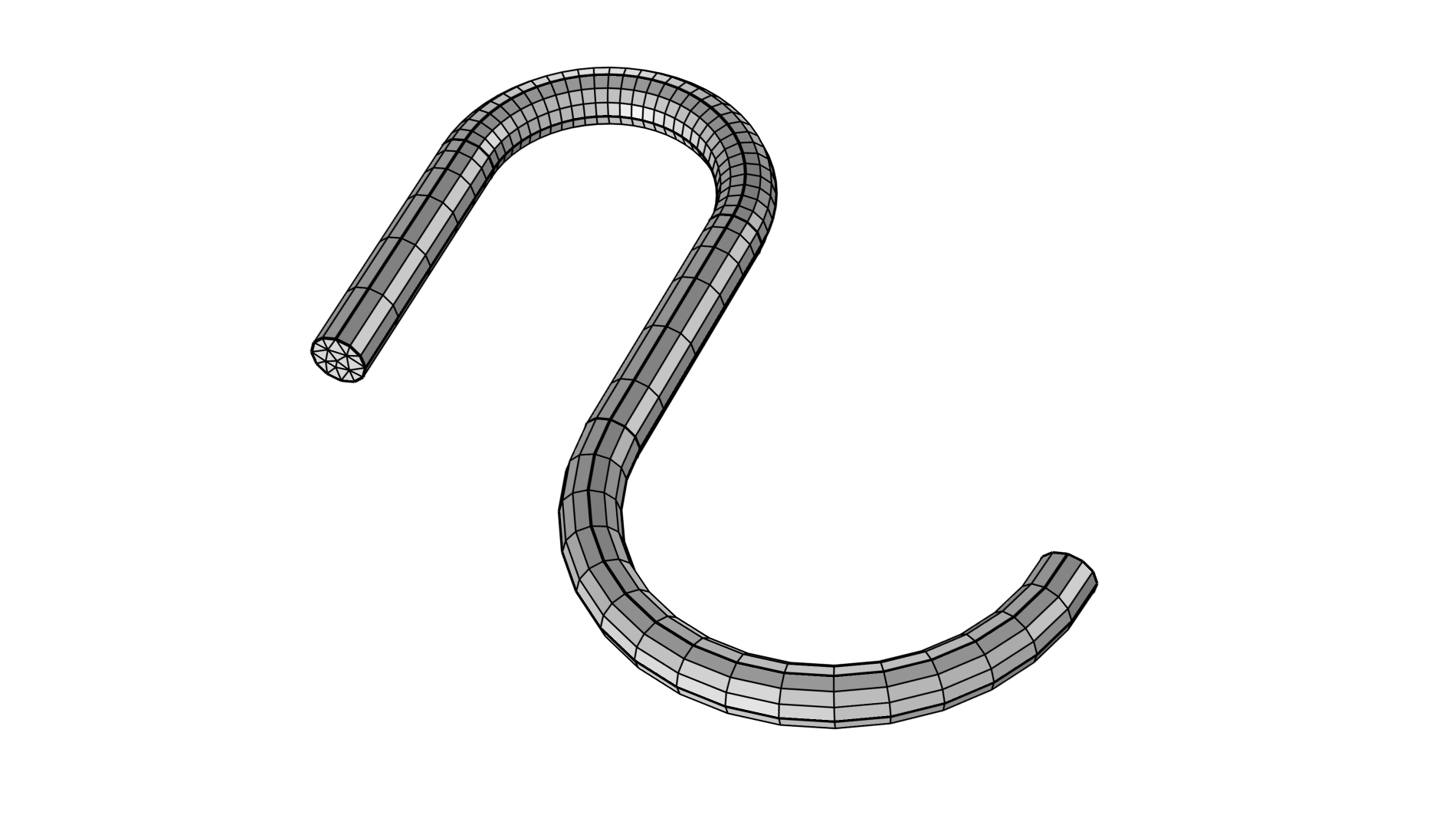
The image on the left depicts the mean curvature of a geometry to be meshed. To account for the curvature, the top chain of edges is meshed first in the center image. The top curve has a curvature factor of 0.1, while the bottom one has a curvature factor of 0.2. Note that the the mesh size changes incrementally across the domains to create a smooth transition.
In the example above, we chose to select Prism in the Mesh Generation menu of the Swept operation Settings window, but in the attached model file for version 6.4, we used the new Hex dominant option.
Consideration of the Adjacent Domains
Any domain adjacent to the one where the mesh is swept can either be meshed before or after the sweep. If an adjacent domain is meshed before the sweep, the face meshes can be considered to be premeshed as shown in the right-hand example below.
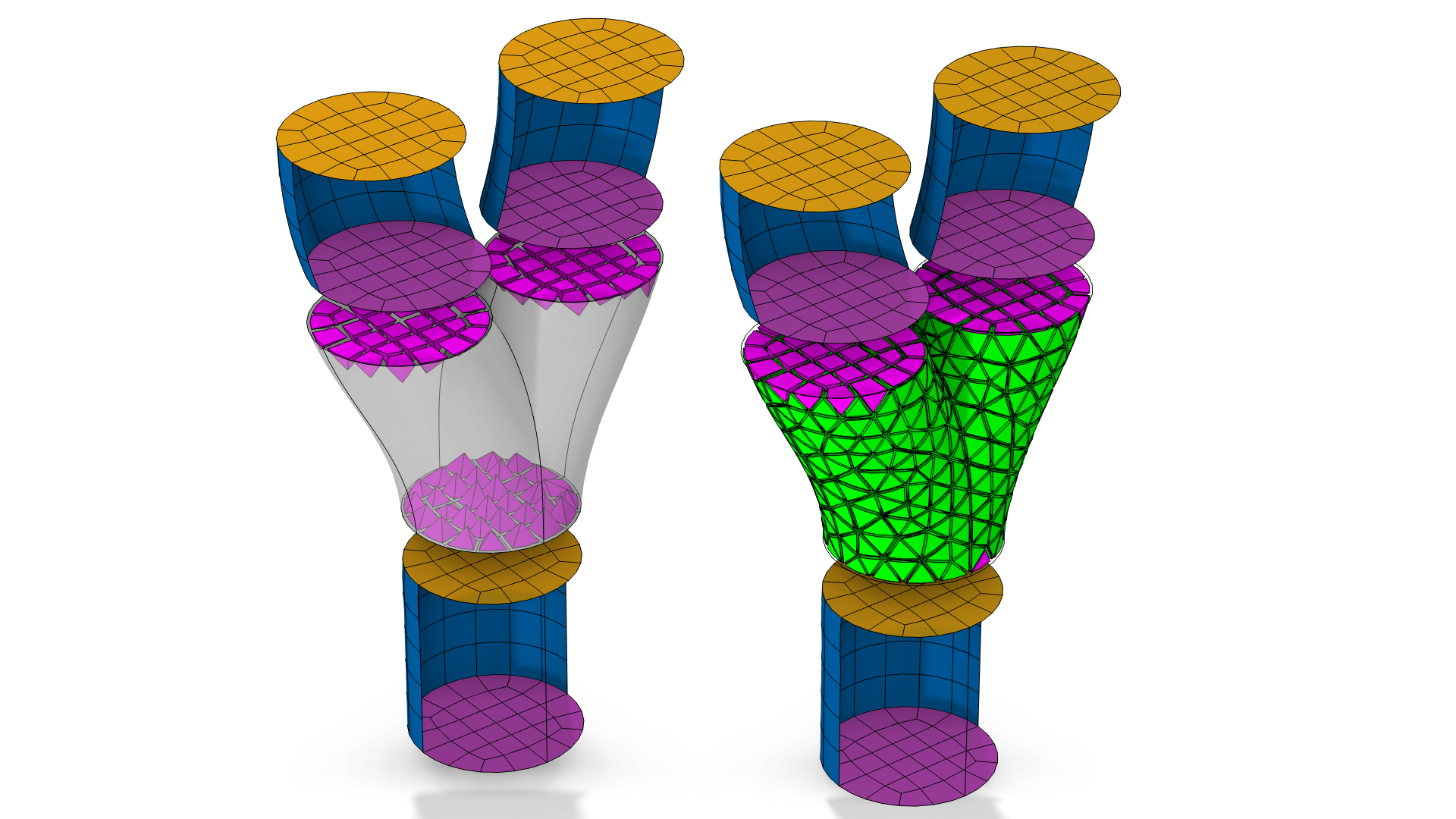
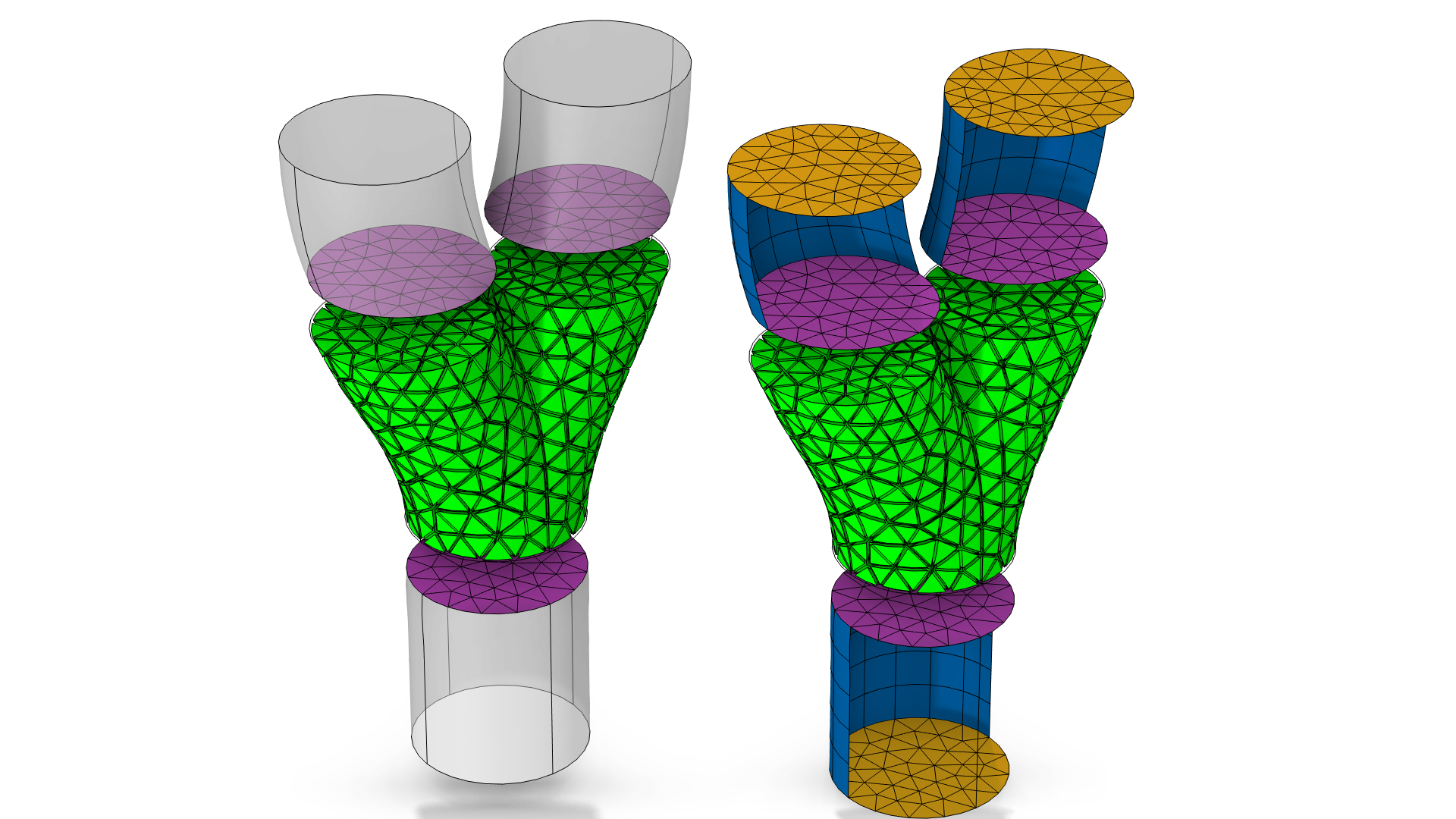
If building a mesh adjacent to the linking faces of a domain with swept mesh, a layer of pyramids (magenta in the animation below) is inserted closest to the linking faces, which enables a transition between the swept mesh elements (yellow quads) and the tetrahedral mesh elements (i.e., green volume mesh elements with only triangular mesh faces) in the surrounding domain. See this blog post this blog post for information about creating mesh plots.
Depending on the number of layers that are inserted along a sweep, the pyramids can become very elongated in one direction which, for some physics, should be avoided.
 A swept meshed cylinder with five element layers, with the skewness quality depicted as green pyramids with relatively high peaks.
 A swept meshed cylinder with one element layer, with the skewness quality depicted as flat orange pyramids.
 A swept meshed cylinder with 100 element layers, with the skewness quality depicted as small orange pyramids.
Things to consider, in case an inserted pyramid becomes too elongated:
- Change the distribution of the elements along the sweep so that the quads have more similar side lengths.
- Premesh the source faces. Set a size setting or distribution such that the mesh along the outer edges better matches the distribution of element layers in the sweep. Compare the two first sets of images below.
- Include the surrounding domains in the sweep, if possible. There might be a need to partition adjacent domains for this to work.
- Use the Form an Assembly action to finalize the geometry. See the following article for more information.
Note that the physics may also set requirements on the mesh. This is not taken into account here.
Even if you take care that the quads have similar side lengths, there are also some things to consider when the adjacent domain has a thin domain region.
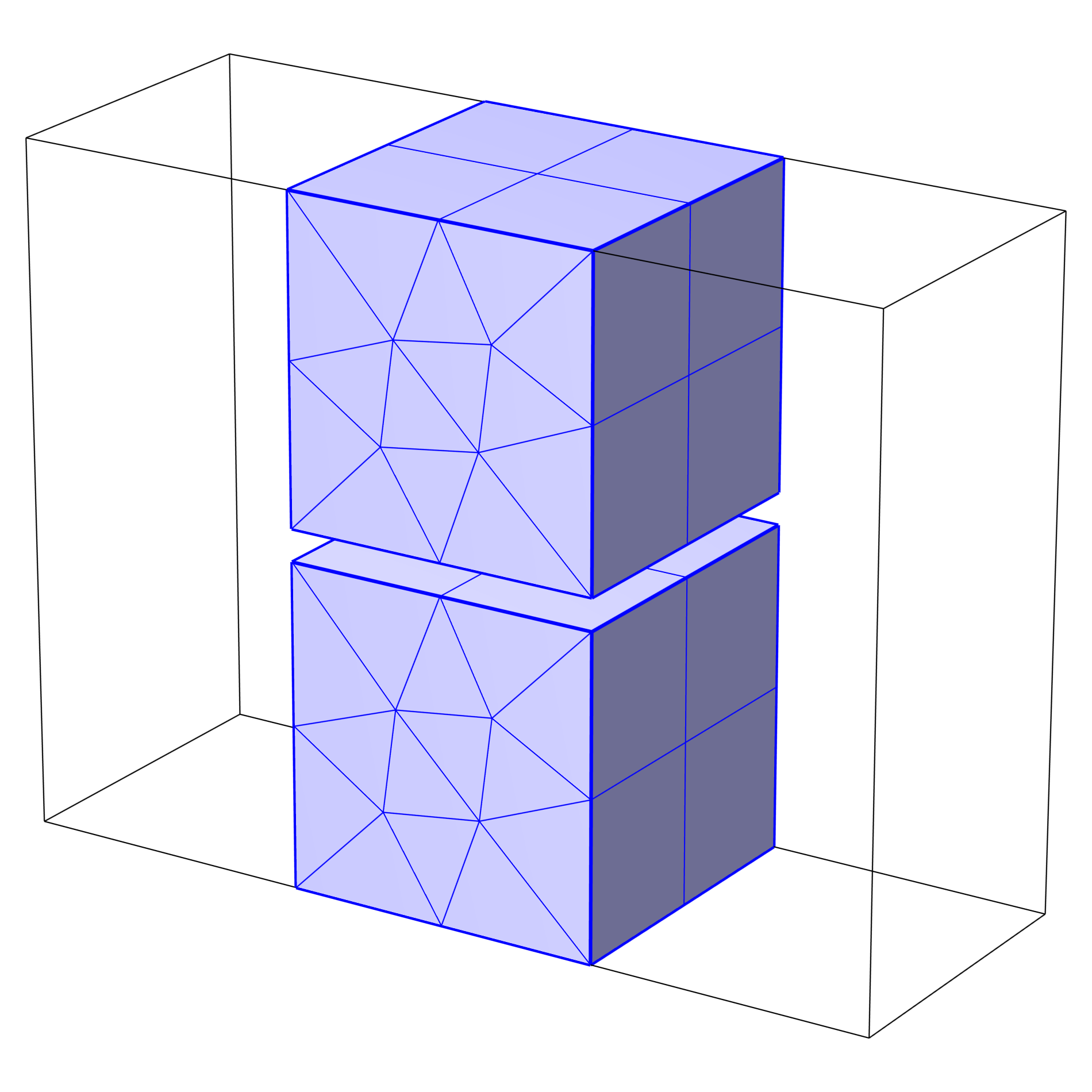 Two identical meshed cubic geometries, one above the other with a thin space between.
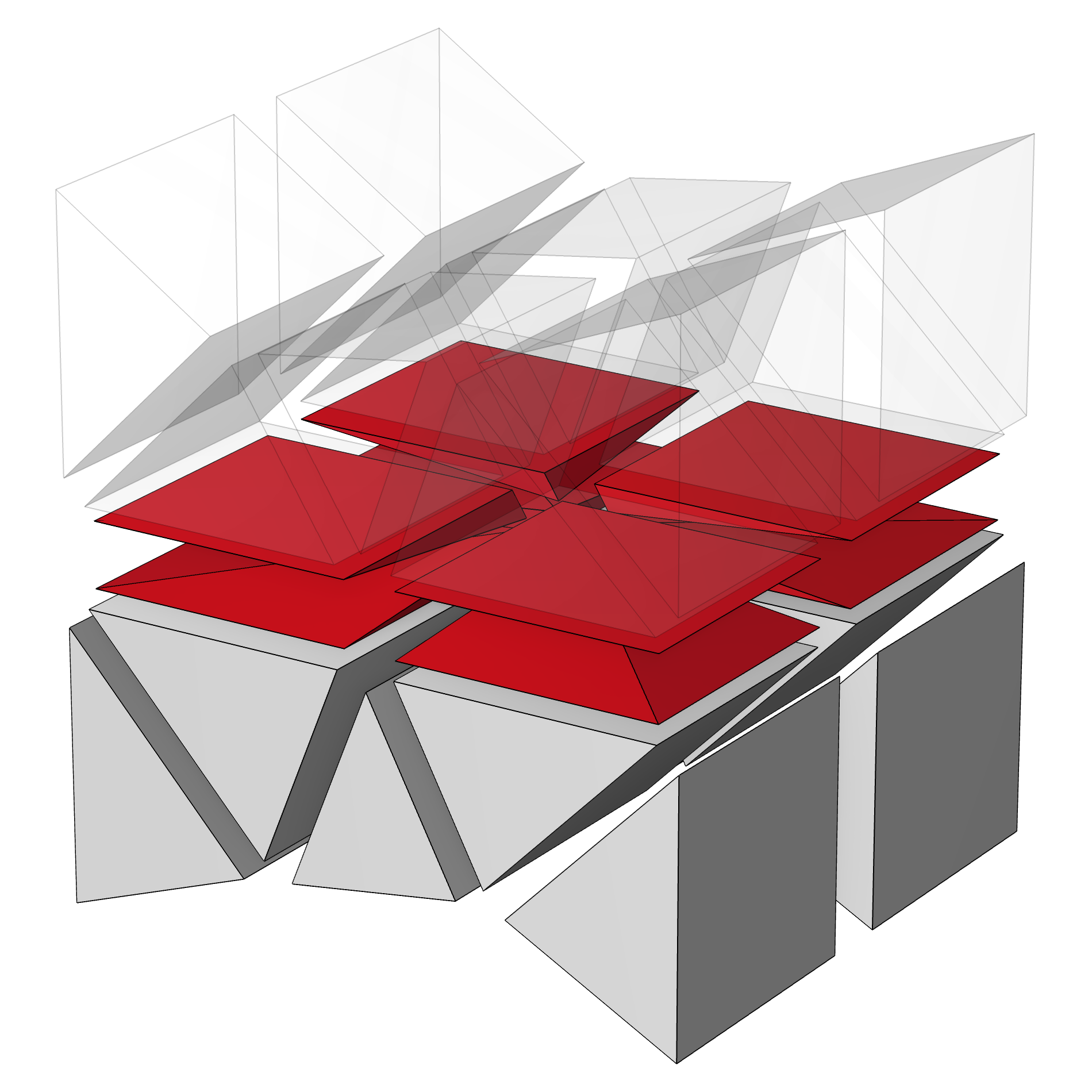 A close-up of the meshed space between the two blocks, showing low quality, flat pyramids.
If the thin domain represents a thin layer, consider if it is possible to use a boundary condition rather than modeling the thin layer explicitly. An example of this is explained in this blog post. If it is not relevant for the physics, consider collapsing the narrow region using geometric operations.
If the thin domain region must be included in the geometry, one solution is to refine the mesh size on the source faces close to the narrow domain region and increase the number of element layers so that the size of the quads become more equal to the thickness of the region. This will result in more mesh elements in total, compared to the earlier cases.
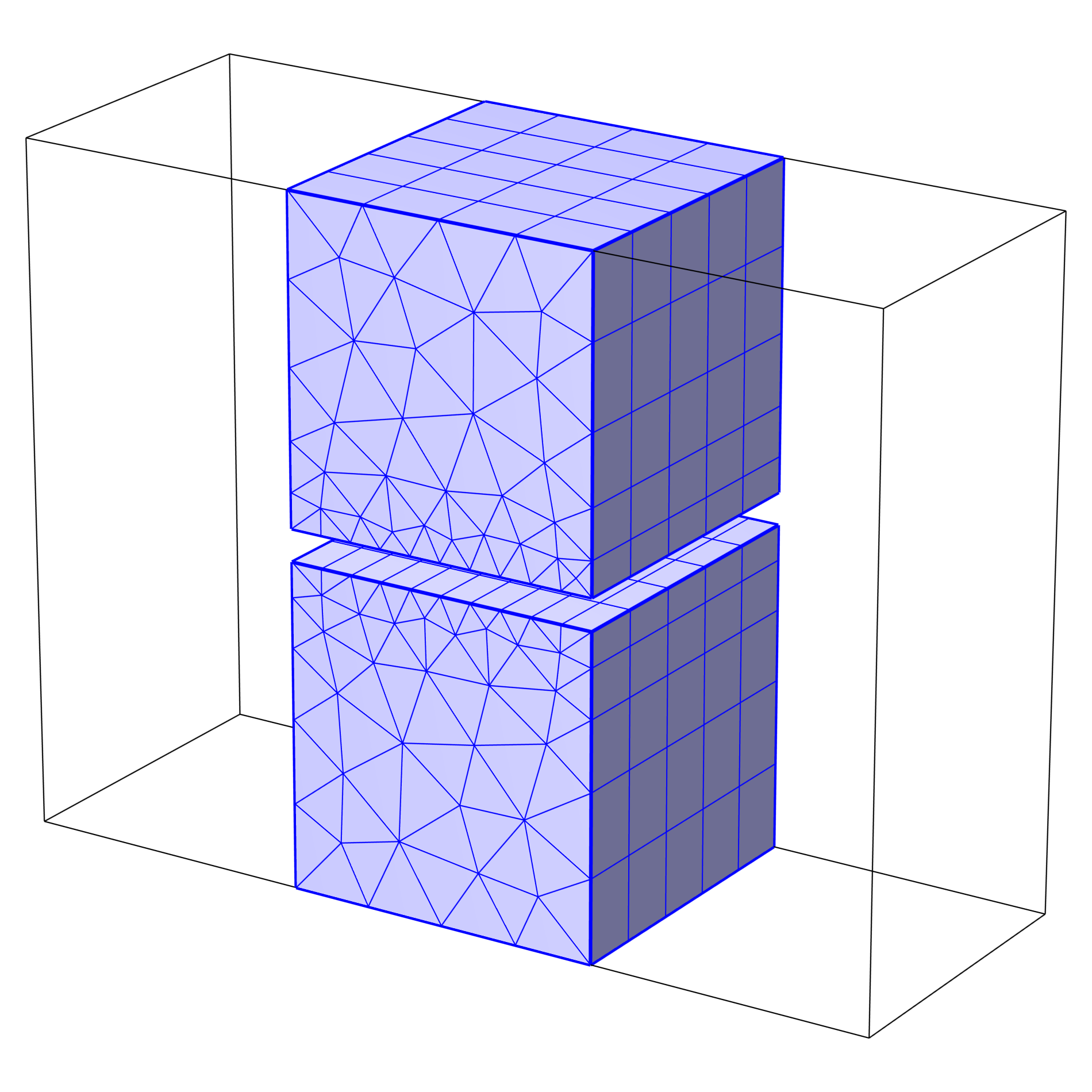 A thin layer of space between two vertically stacked blocks is meshed with a refined size.
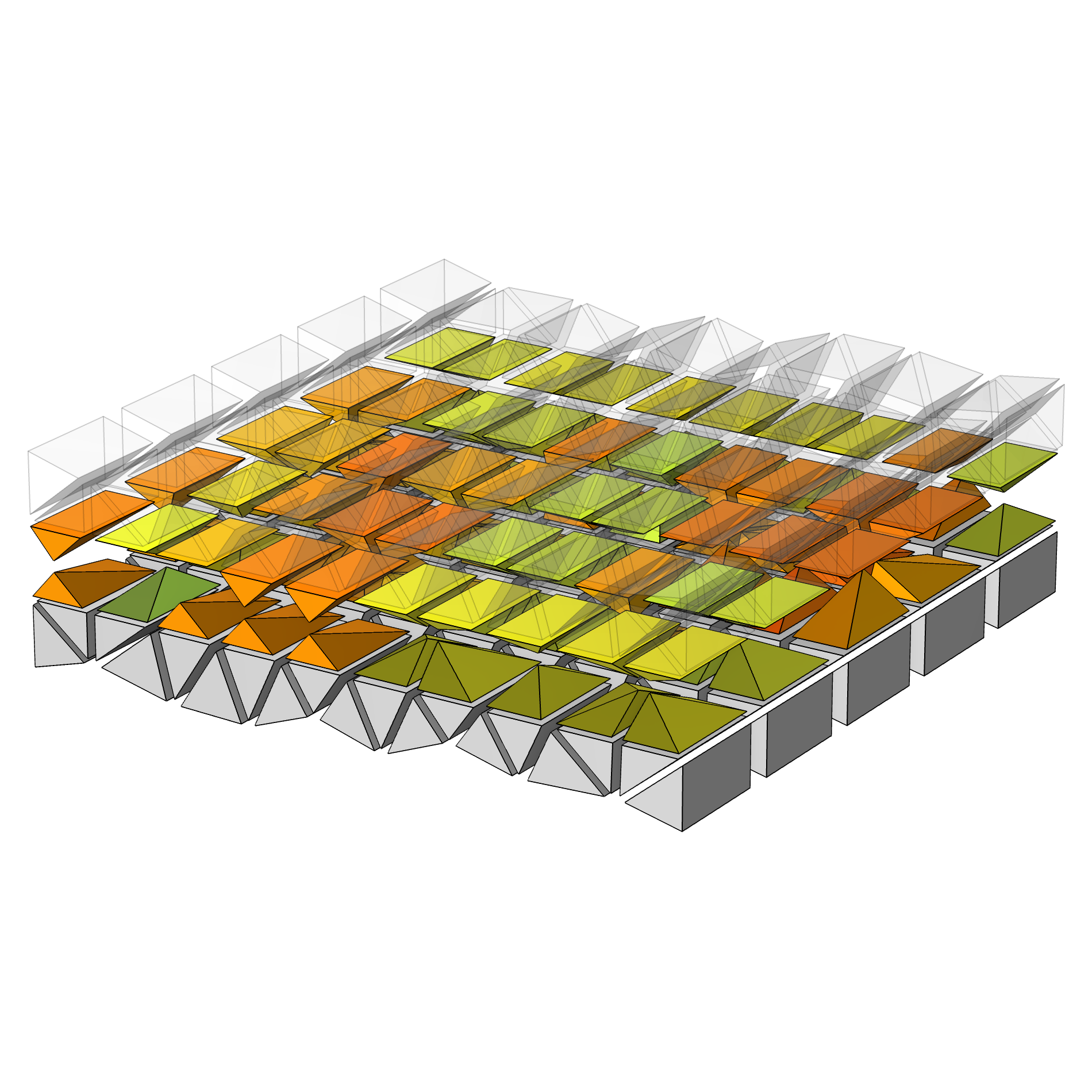 A close-up of the meshed space between two stacked blocks, showing an increased number of mesh elements.
This technique can sometimes require a lot of mesh elements in order to correctly resolve the gap.
In this example geometry, it is also possible to sweep all domains together in one Swept operation. It is also possible to partition the H-shaped domain so that the narrow domain region becomes its own domain (this will give 5 domains in this geometry). This is not shown.
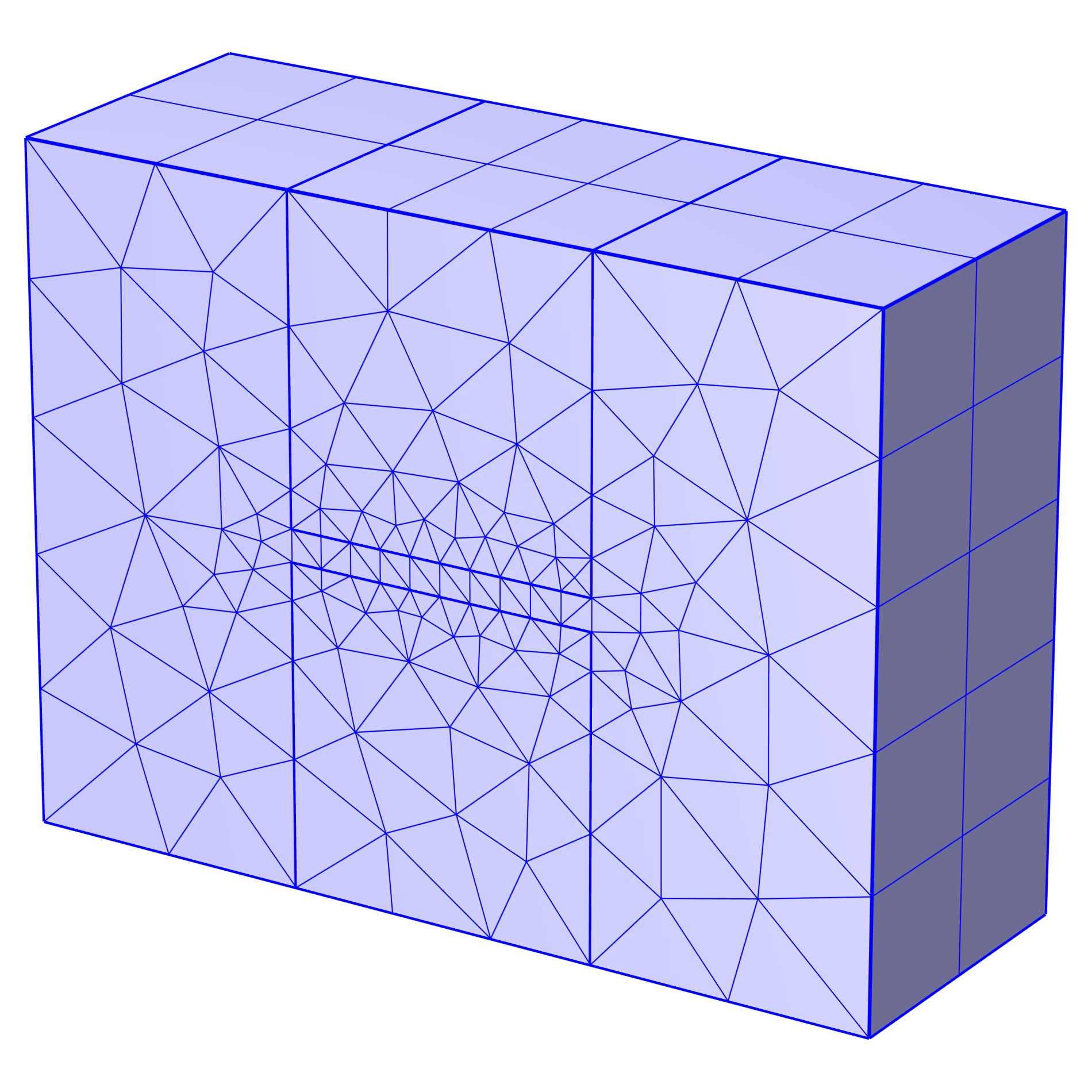 A mesh of several cubic domains all swept together, with prism and hexahedron mesh elements.
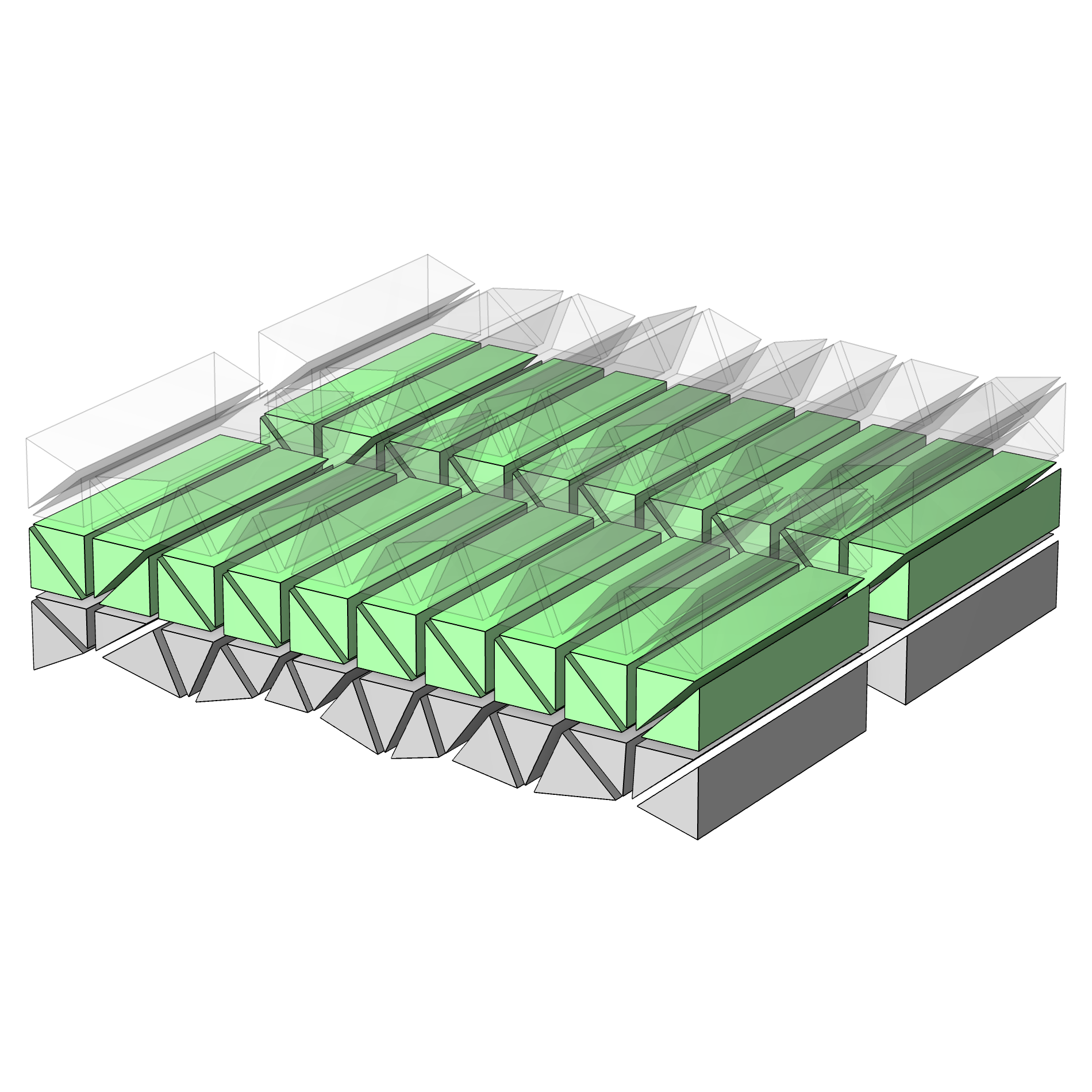 A close-up of the hexahedron mesh of the thin domain included in a sweep of several cubic domains.
Finally, in some cases it can help to first convert the quads using the Convert operation. By converting the quad elements, no pyramids need to be inserted. However, this also splits some of the elements in the swept mesh. With this in mind, make sure you monitor the mesh quality.
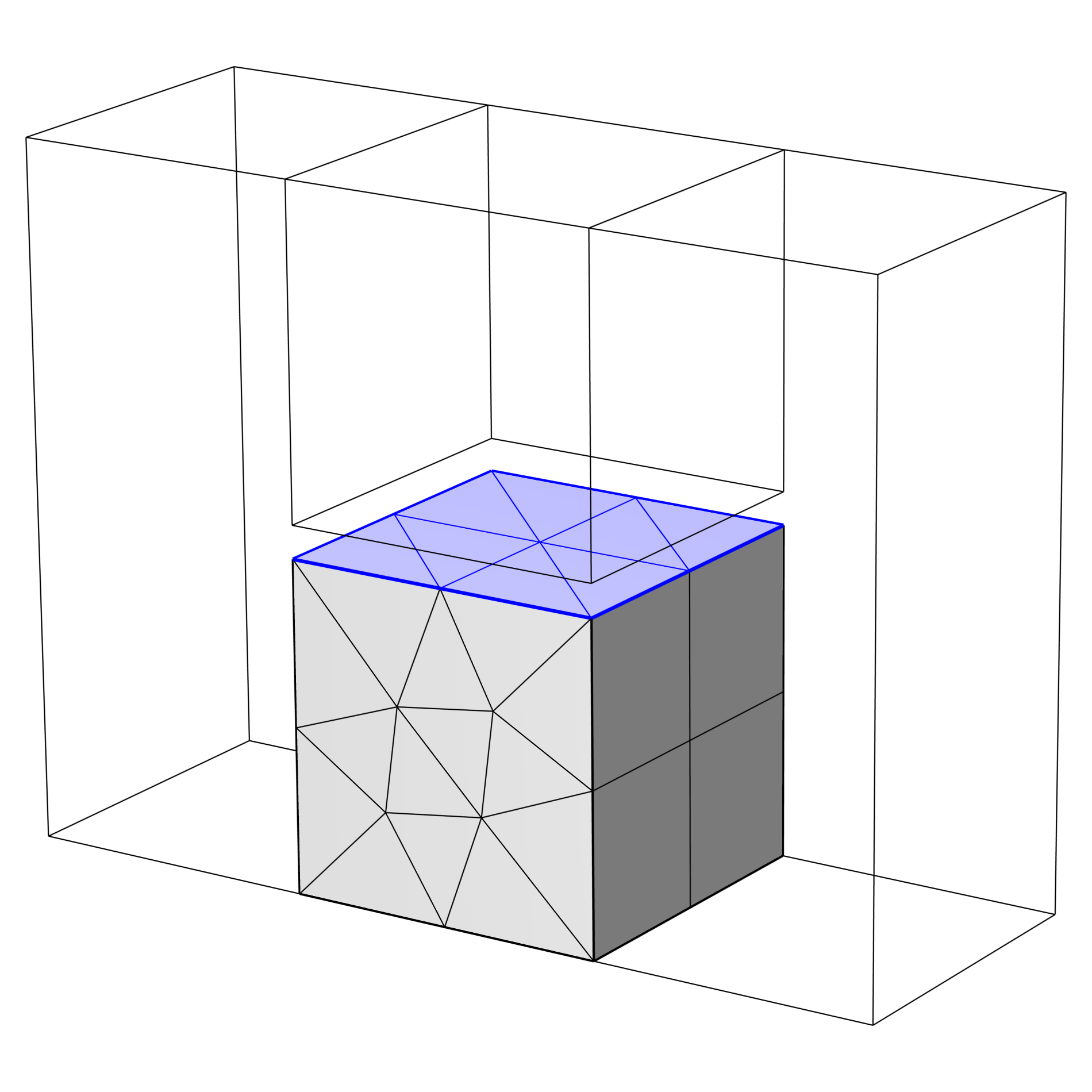 Triangular mesh elements of a thin domain between two stacked blocks, with the top block hidden for visibility.
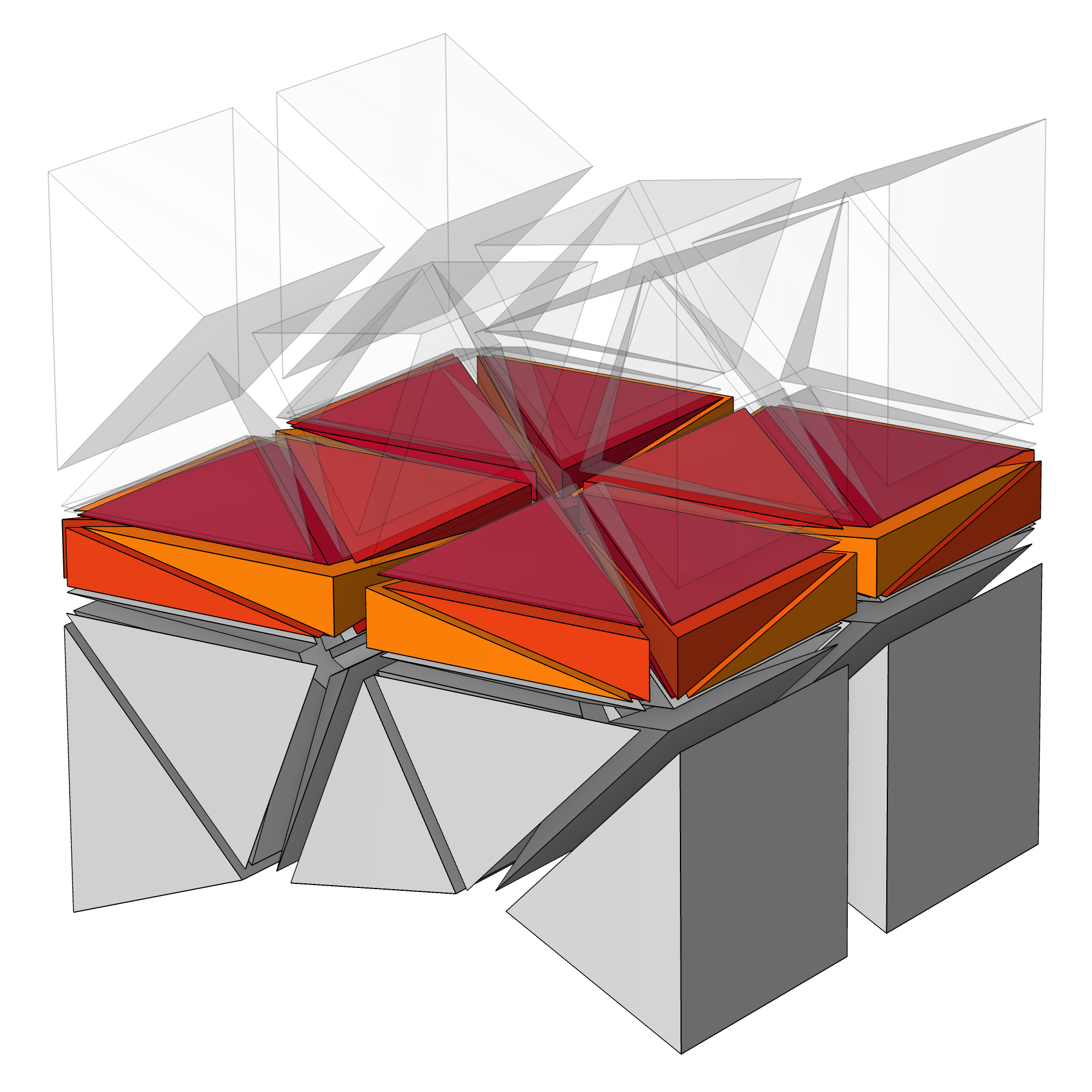 A close-up of the low quality tetrahedra that result from converting the mesh elements of a thin domain between two stacked blocks from quad to triangular.
Further Learning
Several examples were depicted in this article that complemented our discussion on how you can control the swept mesh in your geometry. You can find the MPH files for these examples attached to this article and see firsthand for yourself how this was accomplished for several types of geometries.
Submit feedback about this page or contact support here.


