Optional Configuration of the COMSOL Multiphysics® Installation
When running the installer, you can reconfigure settings on the following pages if the default settings are not optimally suited to your needs. For a more complete breakdown of the entire installation process, refer to the full COMSOL Multiphysics® Installation Guide.
Products Page
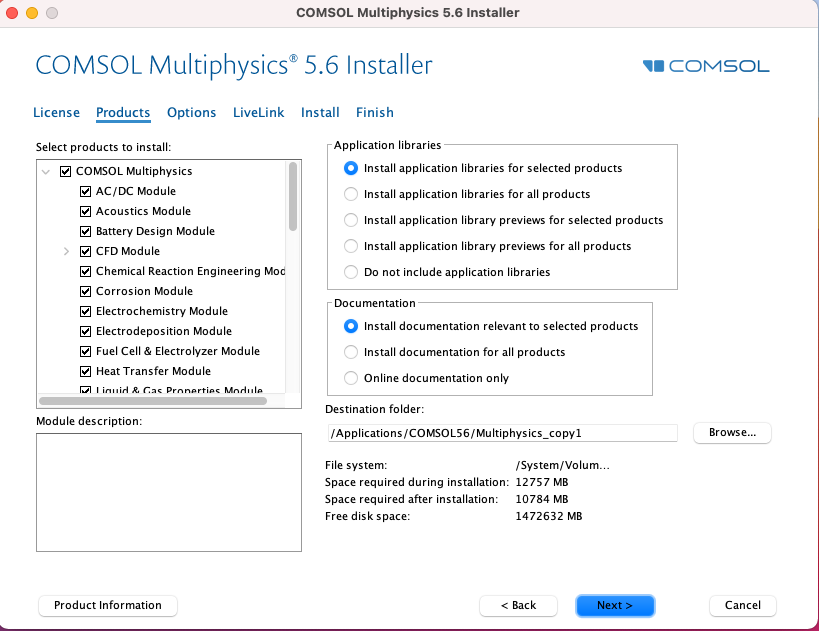
The Products page displays your options for what you want to install. Under Application libraries, you may choose your preference of which application libraries to install. The application libraries contain tutorial PDF guides with tutorial models for reference. To save space, you have the option to install only the previews of the application libraries; the full entries will still be available to download later. You can also choose whether to install product documentation for all of the COMSOL® products or for only those you have chosen to install. Lastly, you can select the file location for installation or keep the default location.
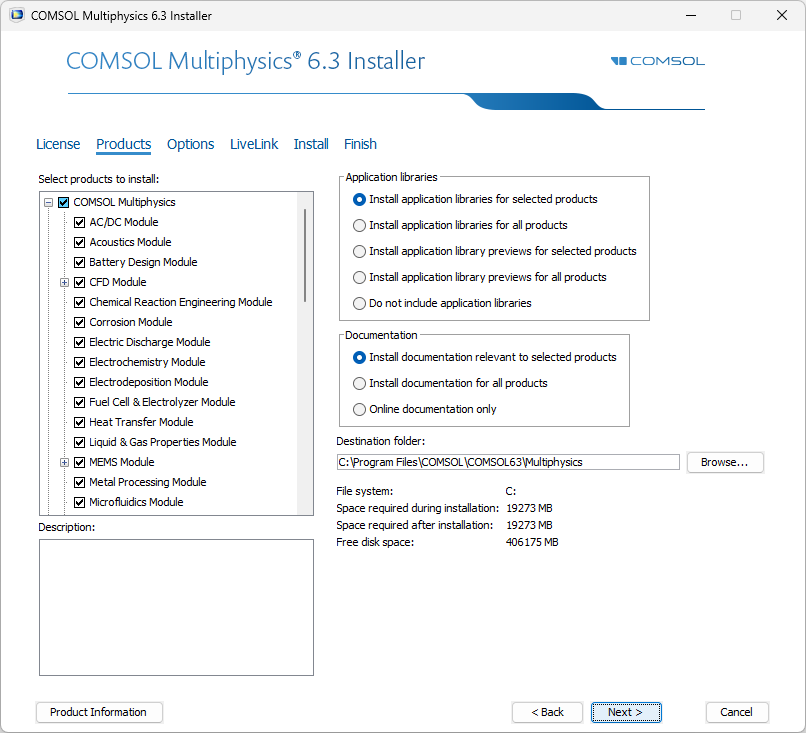 A UI screenshot of the COMSOL installer with the Products page open.
The default settings in the Products page. (View the Products page on macOS.)
A UI screenshot of the COMSOL installer with the Products page open.
The default settings in the Products page. (View the Products page on macOS.)
Note: The Chatbot Components and CUDA DNN Support products are not installed by default. See the articles Enabling Chatbot Within COMSOL Multiphysics® and Setting Up GPU-Accelerated Computing Within COMSOL Multiphysics® for more information. This covers the CUDA directory shown on the Options page.
Options Page
You may choose to use a variety of options intended to make the software easier to use. The toggles enabling some convenient additions during installation are included on the page. The first four settings are enabled by default, starting with two ways to create shortcuts to COMSOL Multiphysics®. Adding firewall rules allows COMSOL Multiphysics® to function without restrictions. Associating .mph files with COMSOL Multiphysics® enables your computer to automatically open COMSOL Multiphysics® when selecting these files.
You also have a few more options you can turn on. You can set a permanent security policy for applications. If you enable Configure security policy, a Security page will be added later in the installation process for you to configure your policy. If you have a proxy server, you can enter its information on this page. Installing the PowerPoint® or Word® interfaces for the current user or all users is helpful if you plan on exporting to either program. Checking for updates after the installation and automatically each time the software is launched will help make sure that COMSOL Multiphysics® is up to date with the most recent improvements.
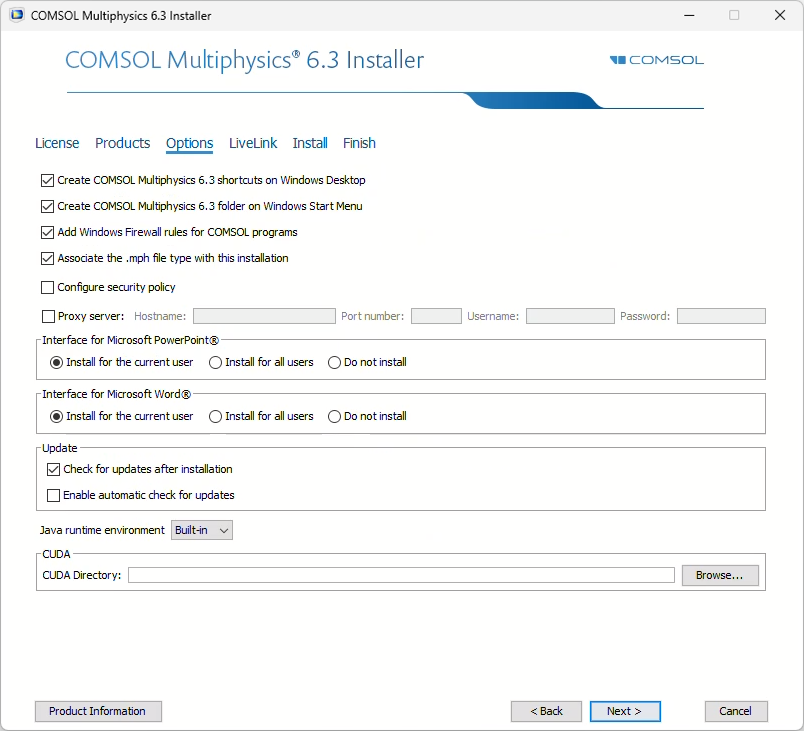 A UI screenshot of the COMSOL installer with the Products page open.
The default settings in the Options page. (View the Options page on macOS)
A UI screenshot of the COMSOL installer with the Products page open.
The default settings in the Options page. (View the Options page on macOS)
Security Page
The Security page will only appear if you have selected the Configure security policy check box in the Options page. The default settings are shown below, but you may choose to enable or disable the settings as needed. We recommend referring to the full COMSOL Multiphysics® Installation Guide for more information on each of these settings.
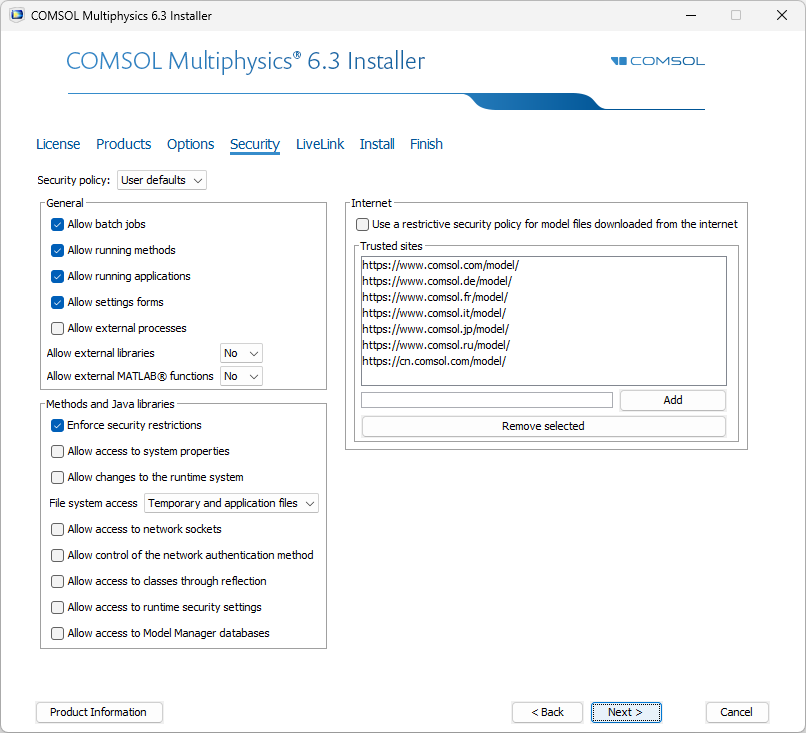 A UI screenshot of the COMSOL installer with the Security page open.
The default settings in the Security page.
A UI screenshot of the COMSOL installer with the Security page open.
The default settings in the Security page.
LiveLink Page
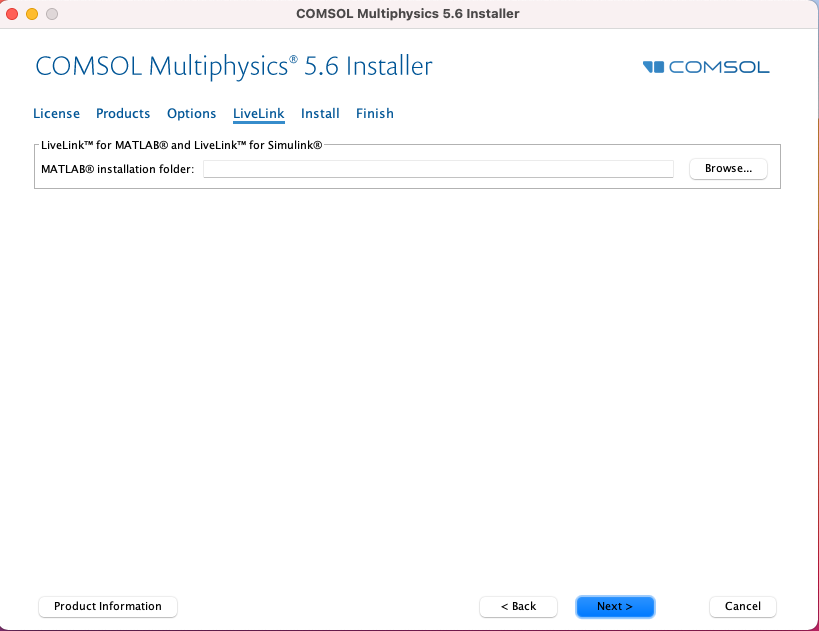
If you have a product to use with COMSOL Multiphysics® via LiveLink™, this page is where you will configure that connection. By default, the installation of LiveLink™ for Excel® is available to the current user only, but clicking the corresponding check box (see screenshot below) enables installation access for all users. To install LiveLink™ for MATLAB® orLiveLink™ for Simulink®, specify the path to the product's respective installation or common file folder. You can find more information for installing your LiveLink™ product in the full COMSOL Multiphysics® Installation Guide.
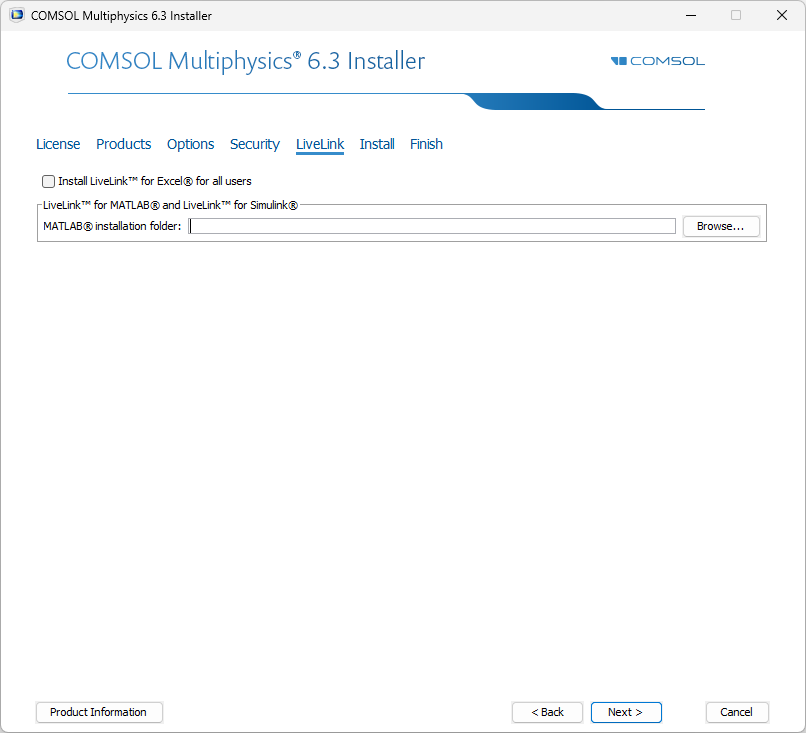 A UI screenshot of the COMSOL installer with the LiveLink page open.
The default settings in the LiveLink page. (View the LiveLink tab on macOS)
A UI screenshot of the COMSOL installer with the LiveLink page open.
The default settings in the LiveLink page. (View the LiveLink tab on macOS)
Install Page
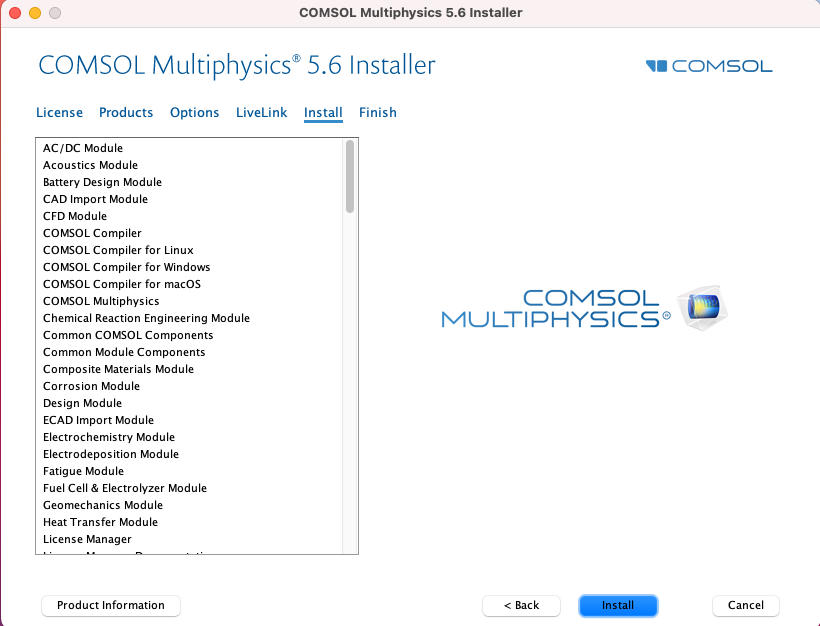
The products that you have selected and the required components for installation will be listed here. If you require any products not listed, you may need to verify that they are selected on the Products page. You can find more information on our suite of products by clicking Product Information.
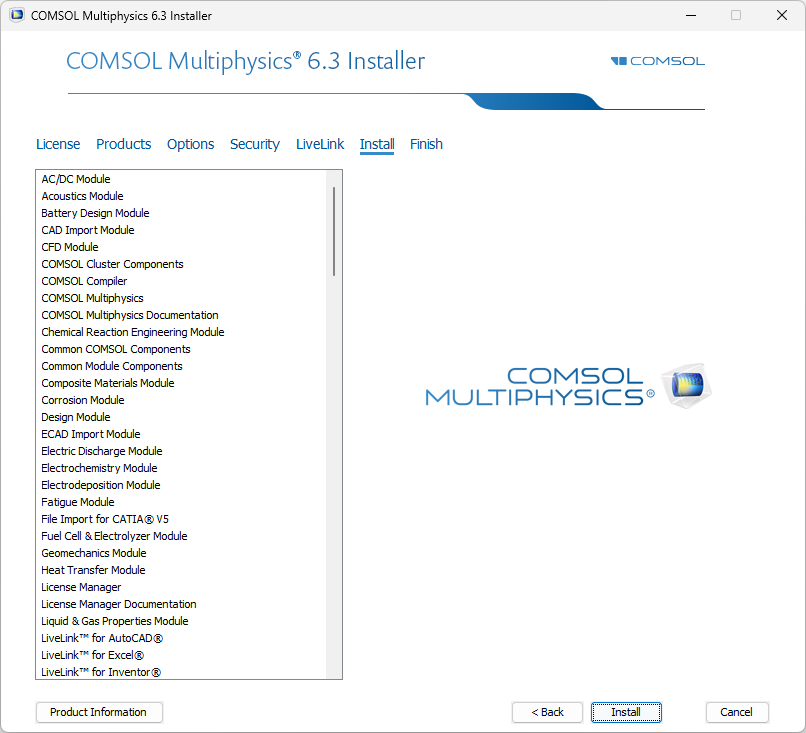 A UI screenshot of the COMSOL installer with the Install page open.
The Install page highlighting the Product Information button, which leads you to more information on our product suite. (View the Install tab on macOS)
A UI screenshot of the COMSOL installer with the Install page open.
The Install page highlighting the Product Information button, which leads you to more information on our product suite. (View the Install tab on macOS)
Submit feedback about this page or contact support here.