
How to Install a Floating Network License (FNL)
This guide explains how to install the COMSOL Multiphysics® software using a Floating Network License (FNL) on multiple devices within your network without restriction. The same process applies to Class Kit Licenses (CKL).
FNLs are the most flexible License type because they combine access for multiple users with access to multiple systems. Alternatively, CPU-Locked Licenses (CPU) can be used on one system, while Named Single-User Licenses (NSL) provide access for one user on up to four personal systems.
FNL Installation Steps
The licensing system for an FNL is centralized, meaning all installations are managed by a single FlexNet® license manager, which resides on a dedicated server (known as the license server). An installation of COMSOL Multiphysics® can be used when a license is checked out from the license server. Therefore, the license server must be remotely accessible to all installations within the network.
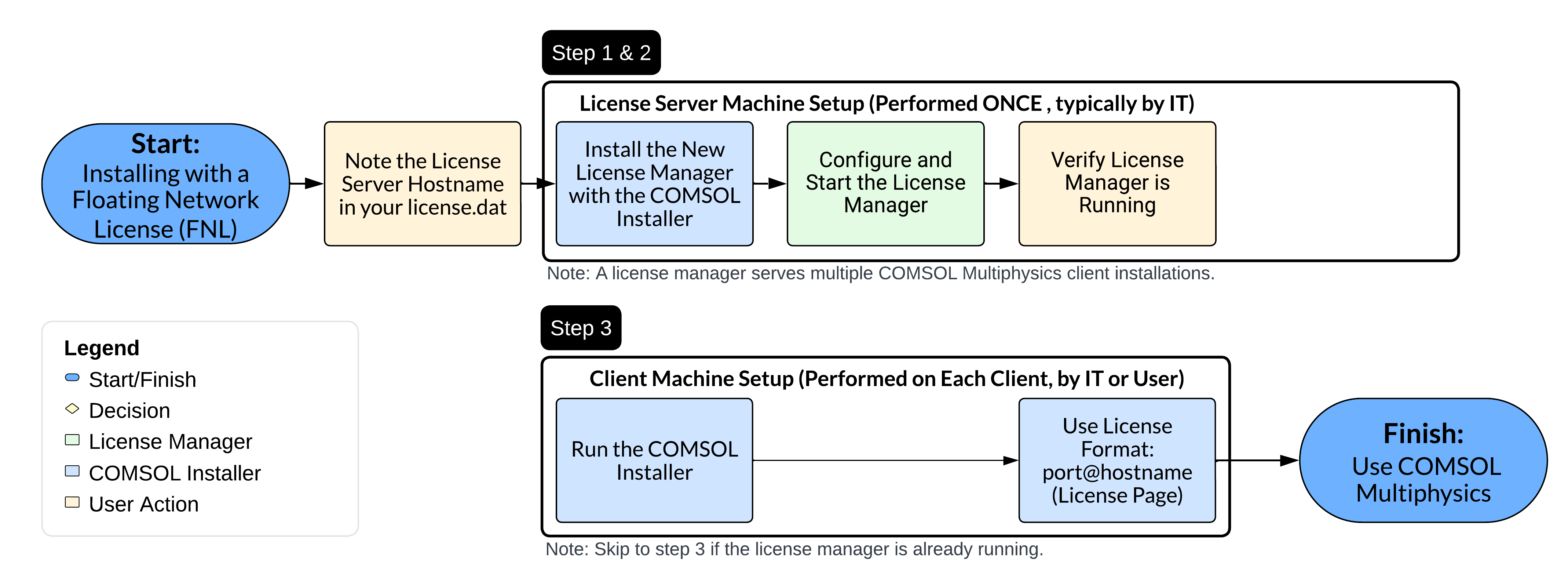 A colored flowchart of the steps to configure a license server and COMSOL Multiphysics with an FNL.
A visualization of the differences for Windows®, macOS, and Linux® when upgrading COMSOL Multiphysics® with a Named Single-User License.
A colored flowchart of the steps to configure a license server and COMSOL Multiphysics with an FNL.
A visualization of the differences for Windows®, macOS, and Linux® when upgrading COMSOL Multiphysics® with a Named Single-User License.
License Server Machine Setup
This guide explains how to install COMSOL Multiphysics® using a Floating Network License (FNL) on multiple devices within your network without restriction. The same process applies to Class Kit Licenses (CKL).
Floating Network licenses are the most flexible license type because they combine access for multiple users with access to multiple systems. Alternatively, CPU-Locked licenses can be used on one system, while Named Single-User licenses (NSL) provide access for one user on up to four personal systems.
FNL Installation Steps
The licensing system for an FNL is centralized, meaning all installations are managed by a single FlexNet® license manager, which resides on a dedicated server (known as the license server). An installation of COMSOL Multiphysics® can be used when a license is checked out from the license server. Therefore, the license server must be remotely accessible to all installations within the network.
A colored flowchart of the steps to configure a license server and COMSOL Multiphysics with an FNL.
A visualization of the differences for Windows®, macOS, and Linux® when upgrading COMSOL Multiphysics® with a Named Single-User License.
License Server Machine - License Manager Setup
-
Install the license manager on the license server machine
-
On the license server machine, follow the detailed installation instructions provided in "How to Install the License Manager for COMSOL Multiphysics®".
ℹ️The instructions for installing the license manager linked above use the online COMSOL Installer. This installer requires a GUI and an internet connection. If you are installing the license manager on a machine with no GUI or internet access, reach out to COMSOL Support to request the license manager binaries as a zip file.
-
On the license server machine, follow the detailed installation instructions provided in "How to Install the License Manager for COMSOL Multiphysics®".
-
Start the license manager on the license server machine
- Once installed, start the license manager on the same machine. Detailed instructions are available in "How to Start the License Manager for COMSOL Multiphysics®".
Client Machine - COMSOL Multiphysics® Setup
-
Install COMSOL Multiphysics®
- Once the license manager is running on the license server, COMSOL Multiphysics® can be installed on any machine within the network. Installations must communicate with the license manager, which is facilitated with the default TCP ports 1718 and 1719. These ports are specified in the license file but can be customized if needed.
-
For complete installation steps, refer to "How to Install COMSOL Multiphysics®".
ℹ️When installing COMSOL Multiphysics® as part of an FNL, we recommend specifying the license information in the format port@hostname (e.g., 1718@my_server).
FNL Installation FAQs
How is the license server chosen for a Floating Network License (FNL)?
The license server machine is defined by the license file. When an FNL is purchased, the COMSOL Licensing team contacts the customer to request details about the chosen machine for hosting the license manager. This information is used to create the license file, ensuring that only the designated license server can successfully run the license manager software.
How can I find the license server information from the license file?
The license.dat file contains the necessary information to identify the license server. The top three lines of this file for a Floating Network License (FNL) typically look like this:
SERVER my_server 123456789ABC 1718
USE_SERVER
VENDOR LMCOMSOL port=1719
my_server: hostname of the license server machine.123456789ABC: hostid (MAC address) of the license server.1718: TCP port used for server communication.LMCOMSOL port=1719: TCP port used by the vendor daemon, which manages license distribution.
Can I modify the license file to change the license server settings?
You can modify the hostname (my_server) and TCP ports (1718 and 1719) in the license file if needed. However, changing the hostid or any other critical details will corrupt the file, preventing the license manager from functioning properly. If you need to transfer the license server to a new machine, do not manually edit the hostid. Instead, contact COMSOL Support to request a new license file that is properly configured for your new server.
Does a Floating Network License (FNL) require an internet connection?
No, an internet connection is not required as long as the COMSOL Multiphysics® installation and the license server are within the organization's internal network. The only requirement is that the installation must be able to communicate with the license server via TCP ports 1718 and 1719. However, if users need to access COMSOL® from outside the internal network, such as when working remotely or traveling, an internet connection and additional permissions may be necessary. In such cases, consult your organization's IT department for guidance on remote access configuration.
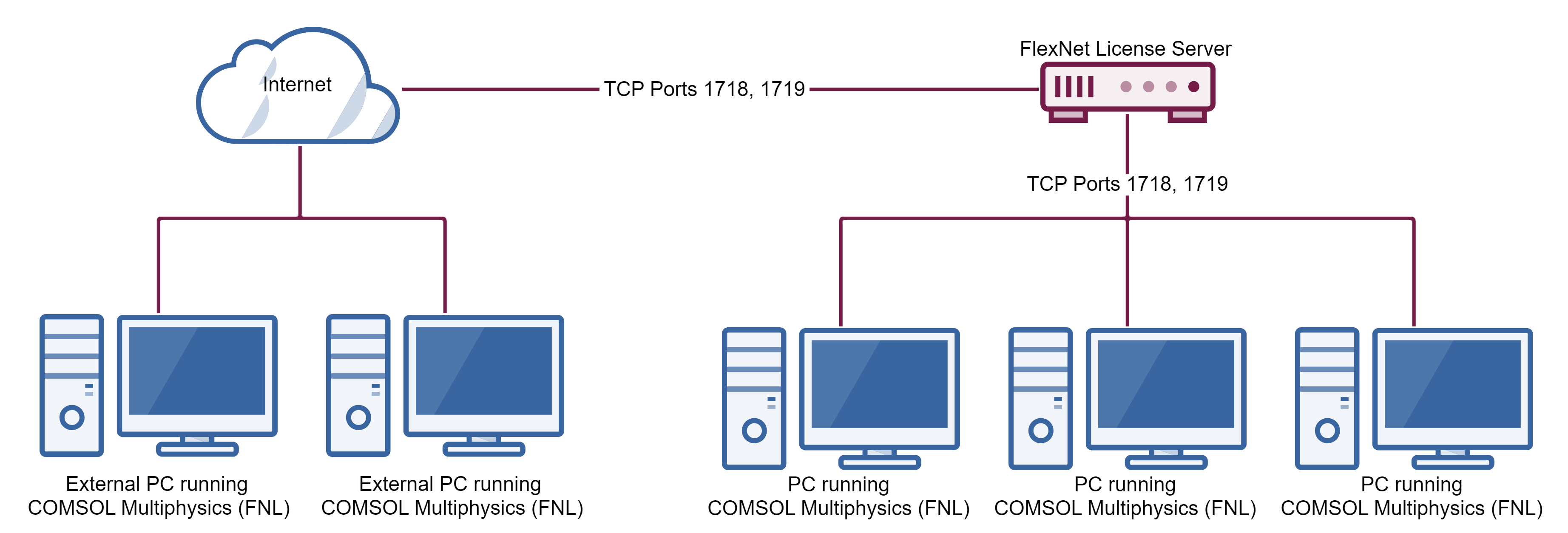 A diagram of the license server connected to local and external computers.
The FlexNet® License Server is connected to PCs within a local network and through the internet.
A diagram of the license server connected to local and external computers.
The FlexNet® License Server is connected to PCs within a local network and through the internet.
Submit feedback about this page or contact support here.